The Payment Reconciliation report details payments made over a given period and what those payments covered, since a payment might not cover all line items on an order.
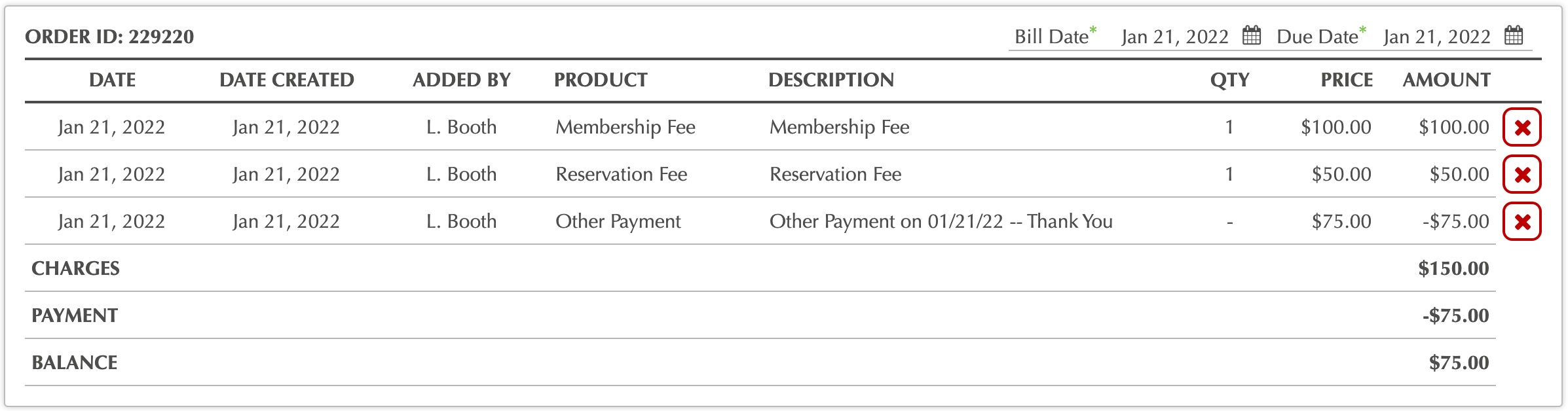
For example, a total order might have 3 line items and total $150. A payment might be for $75, covering two of the line items.
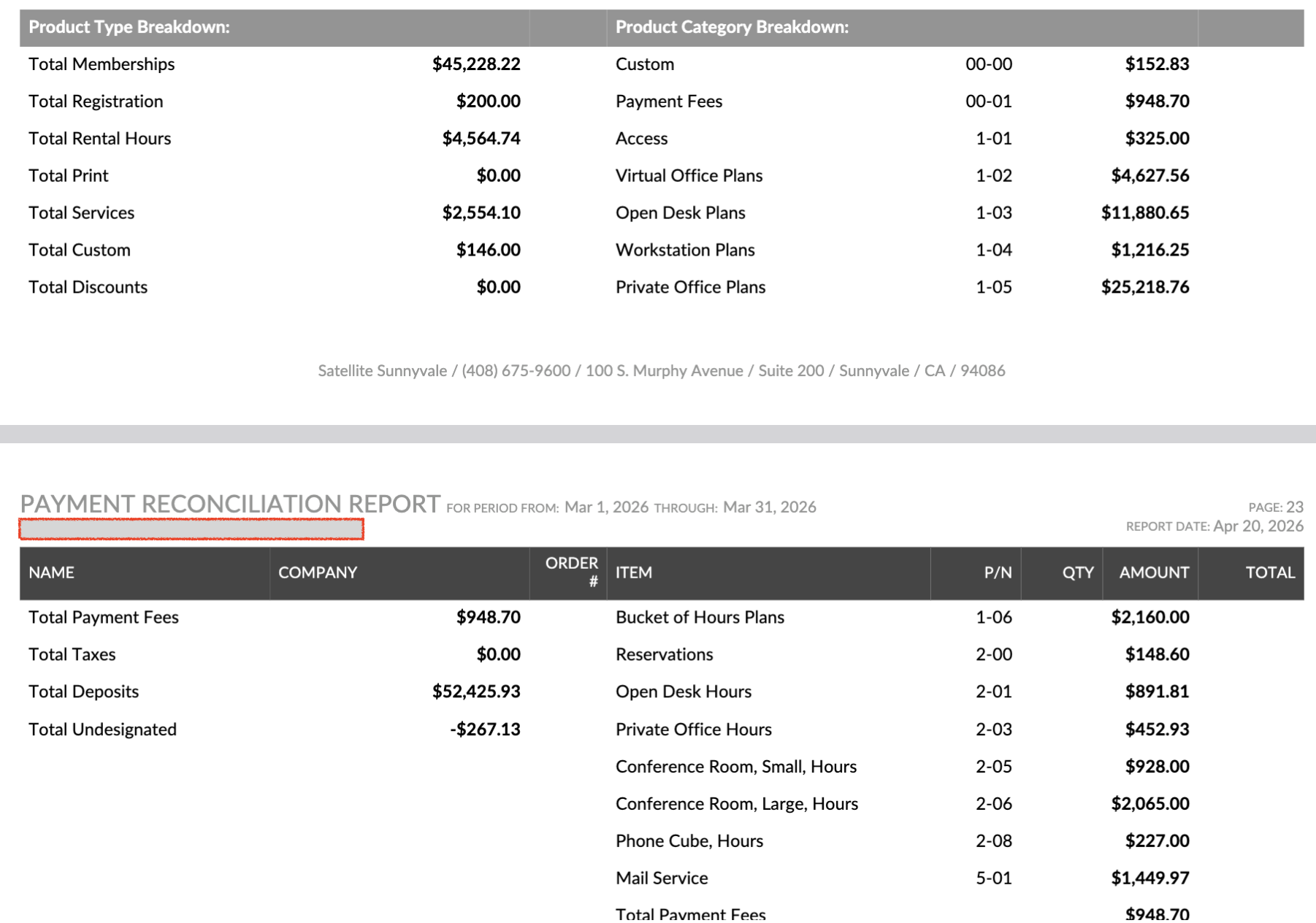
The report enables you to know how much income you received -- on a cash basis -- for each of the categories on your P&L for the time period in question.
At the bottom of the report, you will see a summary of revenue for your major product categories:
Note: This feature is available on the Pro Plan. If you’d like access or want to learn more about upgrading, submit a support ticket and our team will be happy to help.
Before Pulling the Payment Reconciliation Report
- Go to ACCOUNTING > BULK PAYMENT ASSIGNMENTS
- Select the date range for the report period you need
- Click SELECT ALL at the top
- Click ASSIGN PAYMENTS at the bottom.
- Go to REPORTS > PAYMENT RECONCILIATION REPORT and pull the report.
Payments can also be assigned as an order is created:
Example: Let's say you have an order with line-items for a Reservation of $50, and a Membership fee of $100.
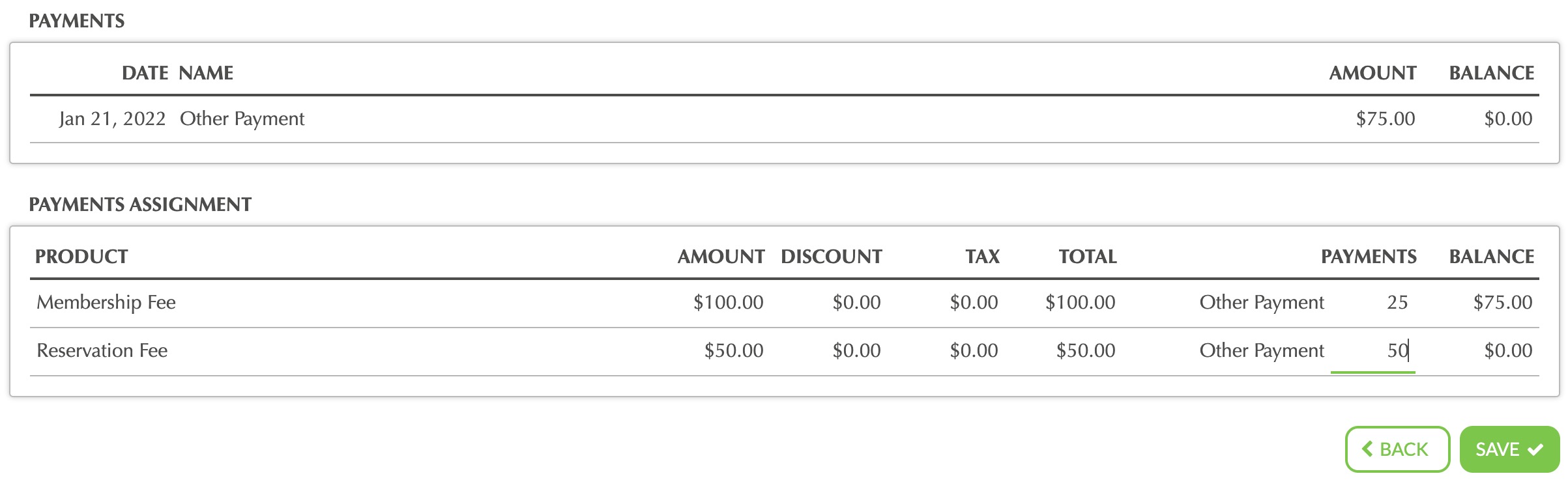
If the member makes a partial $75 payment, you can use the Assign Payments tool on the EDIT ORDER page to assign $50 of that payment to the Reservation and $25 to Membership.
The Payment Reconciliation report shows you how each payment in the date range you select was assigned.
Example Order:
Payment Assignment Configuration #1:
 Payment Assignment Configuration #2: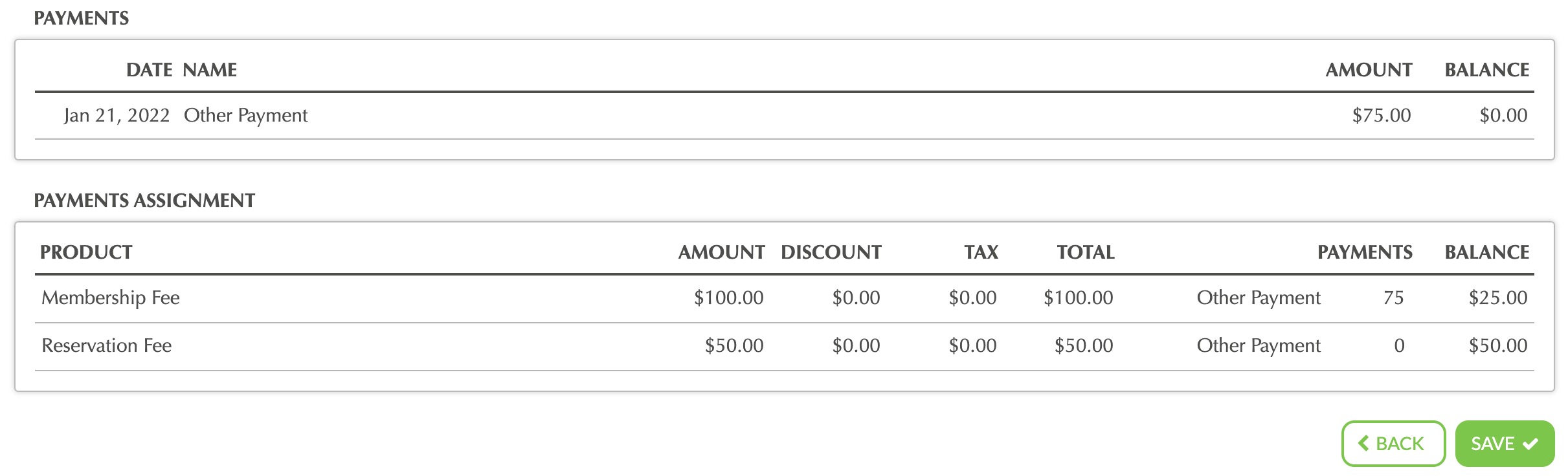
Was this article helpful?
That’s Great!
Thank you for your feedback
Sorry! We couldn't be helpful
Thank you for your feedback
Feedback sent
We appreciate your effort and will try to fix the article