PaperCut MF is a powerful print management system that simplifies printing for your members and co-members without requiring you to manually load print drivers for each user.
PaperCut tracks copies, prints, scans, and faxes made using each member’s printer code. Each month, you can upload the PaperCut usage report to Deskworks for one-click posting to member accounts. The charges are then automatically swept onto the appropriate invoices.
Note: This feature is available on the Pro Plan. If you’d like access or want to learn more about upgrading, submit a support ticket and our team will be happy to help.
Supported PaperCut Products
The primary PaperCut products used in the flexible workspace industry are:
- PaperCut MF: A self-hosted print management solution installed on-premises or in a private cloud.
- PaperCut Hive: A fully cloud-hosted print management solution.
This article covers the Deskworks integration with PaperCut MF. Deskworks does not currently integrate with PaperCut Hive.
PaperCut MF Integration Overview
When a new member is created in Deskworks, the following fields from the Member Profile are pushed to PaperCut:
| Deskworks Member Profile Field | PaperCut Field |
| Firstname-Lastname-UserID | Username |
| Login | Username Alias |
| Printer Code | Card/Identity Numbers > Primary Password |
| Email (1st) | Primary Email |
Important Notes
Username
The PaperCut Username is fixed after it is created and does not change.
The PaperCut Username Alias, which is the member’s Deskworks Login, can also be used to access PaperCut and print from a device.
Profile Updates & Deactivation
- When supported information on the Deskworks Member Profile changes, including the Login, the updated information is pushed to PaperCut.
- When a member is deactivated in Deskworks, the change is also pushed to PaperCut.
Co-members
- Co-members are also pushed to PaperCut.
- Co-members should use a printer code associated with the primary member account when copying, scanning, or faxing so the charges are posted to the correct Deskworks account.
Setup
PaperCut MF is typically purchased through your printer vendor. Your PaperCut vendor will usually help install and configure the required PaperCut server. Here are the steps to integrate with Deskworks:
- Purchase a small computer to use as a print server. This will usually be supplied and set up by your PaperCut vendor.
- Although available computers change over time, currently we recommend: MeLE Overclock3C N5095 16GB 512GB, Micro PC Windows 11 Pro Small Desktop, Mini Computer
- Open a Deskworks support ticket requesting the PaperCut MF integration.
- Go to PaperCut and create an API Key:
- Click Options on the PaperCut Sidebar
- Click Config Editor on top menu
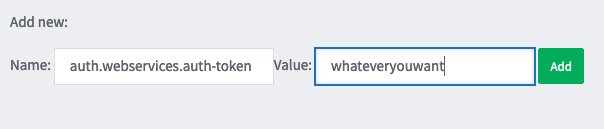
- Search for auth.webservices.auth-token
- If not found, go to "Add new:" and enter the Name below and whatever you want to use for a Value. The Value will be your API Key to enter in the next step in Deskworks.
- Set "auth.webservices.allowed-addresses: * " (to whitelist any IP address and allow access to your PaperCut Server API.)
- Set "internal-users.enable: Y" (to allow Deskworks to create internal users in PaperCut.)
- Set "internal-users.self-registration.min-password-length: 5". (The length should be less or equal to your desired printer code length.)
- In Deskworks, go to SETUP > PRINT SETUP
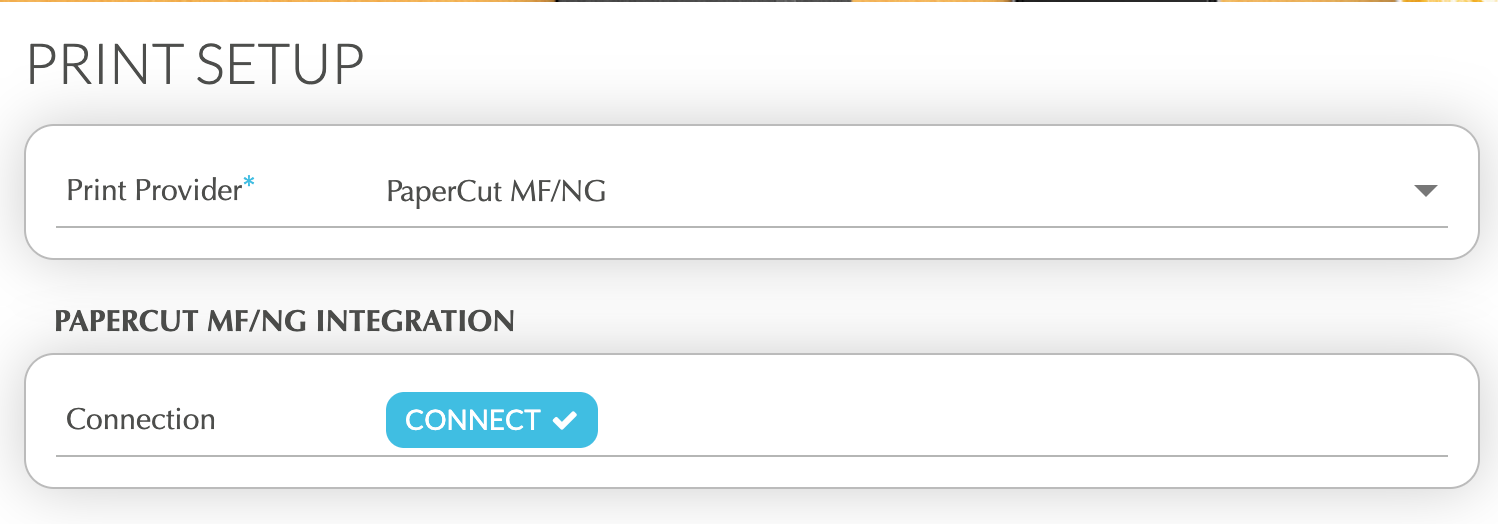
- For Print Provider, select PaperCut MF/NG
- Then, click CONNECT
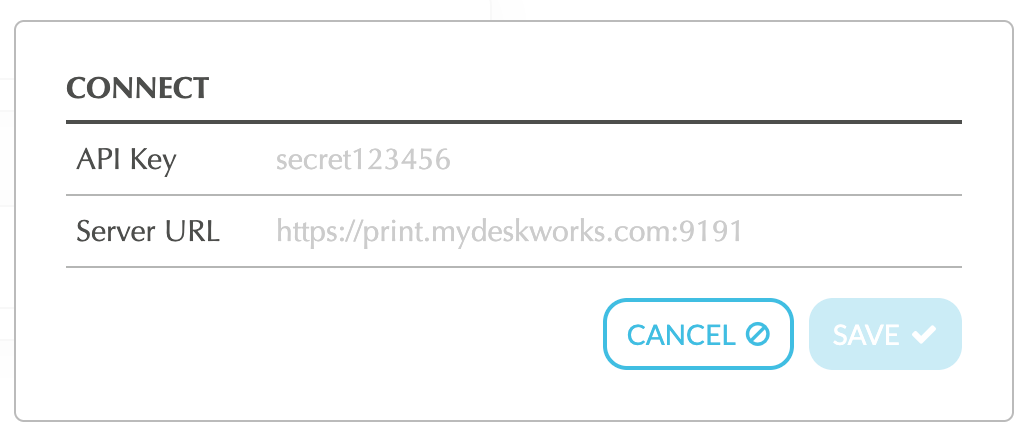
- Enter your API Key and Server URL in the connection dialog.
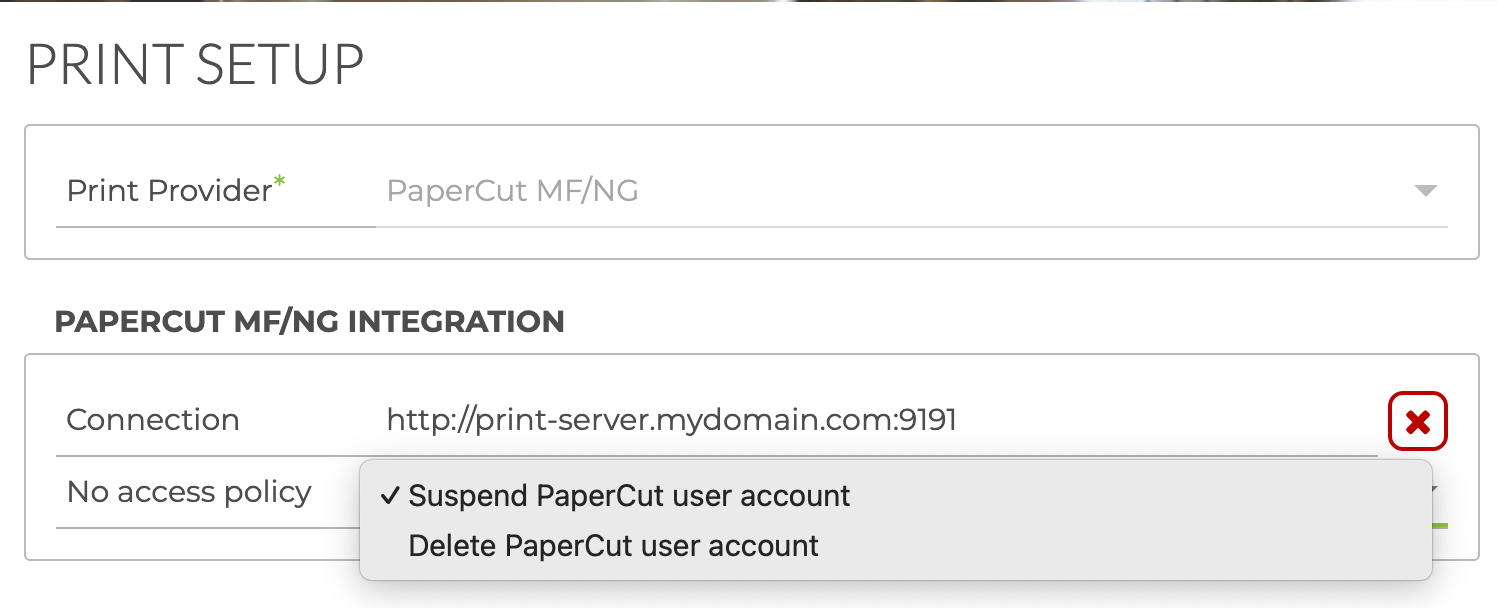
- Make sure the correct "No access policy" is selected.
Was this article helpful?
That’s Great!
Thank you for your feedback
Sorry! We couldn't be helpful
Thank you for your feedback
Feedback sent
We appreciate your effort and will try to fix the article