Bots and phishing attempts are becoming increasingly common. To help protect your account, Deskworks limits users to five failed login attempts.
After the fifth failed attempt, the account is locked and the user must reset their password using the Forgot Password? option. Admin can also reset a user's passwords directly on the Member Profile.
How to Reset Your Password
- After five failed login attempts, a message will appear directing you to reset your password:
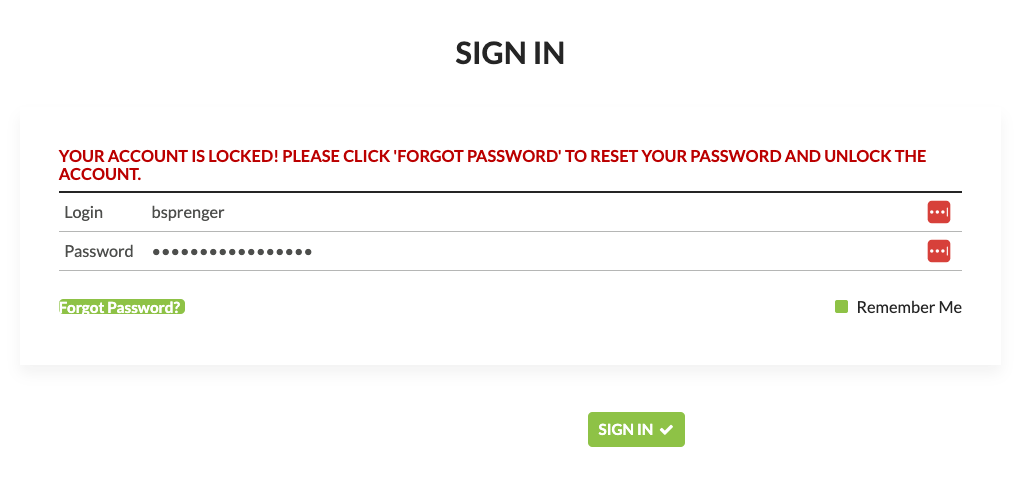
- Click Forgot Password?
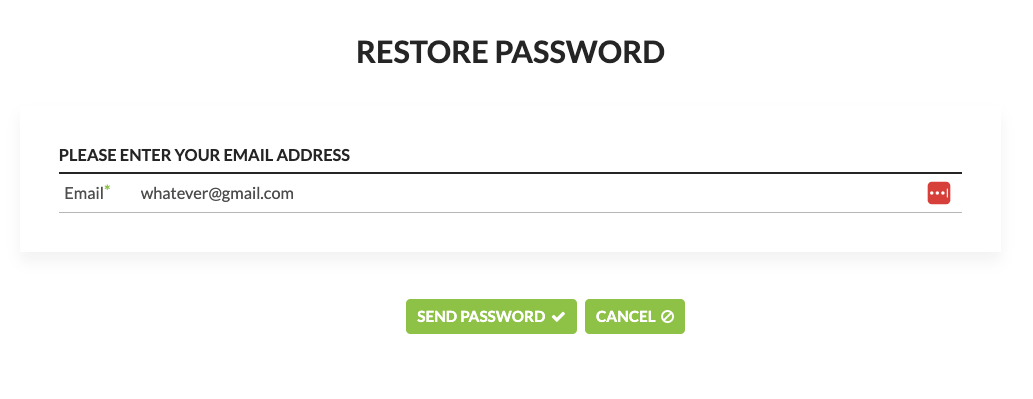
- On the Restore Password screen, enter the email address associated with your Deskworks account and click Send Password:
- Check your email for a password reset link and follow the link to create a new password.
Once the password has been reset, you will be redirected to the Deskworks login screen. Enter the username and new password to log in.
If You Do Not Receive an Email
A password reset email will not be sent if:
- The email address entered does not match a Deskworks account.
- The email address belongs to an inactive account.
Confirm that you entered the correct email address. If you still do not receive an email, contact your workspace staff for help.
For Workspace Staff
Admin can also reset a user’s password from within Deskworks (under Members > View/Edit Profile) and provide the new password directly to the user.
Was this article helpful?
That’s Great!
Thank you for your feedback
Sorry! We couldn't be helpful
Thank you for your feedback
Feedback sent
We appreciate your effort and will try to fix the article