If you're using Calendly to schedule tours, you can sync those bookings with Deskworks using your Google Calendar integration.
This allows Calendly events to automatically appear as reservations in Deskworks, helping you keep everything in one place.
For the best experience, we recommend using a dedicated Tours calendar in your Google Account so only tour bookings are synced into Deskworks. If you use a general calendar, all events (not just tours) will also appear in Deskworks.
Overview of the Setup
You’ll:
- Create a dedicated user in Deskworks for Calendly bookings
- Set up a reservation category and unit in Deskworks for Tours
- Sync that unit with a Google Calendar
- Configure Calendly to send bookings to that calendar
Step 1: Create a User for Calendly Bookings
This user will act as the “owner” of all synced tour reservations.
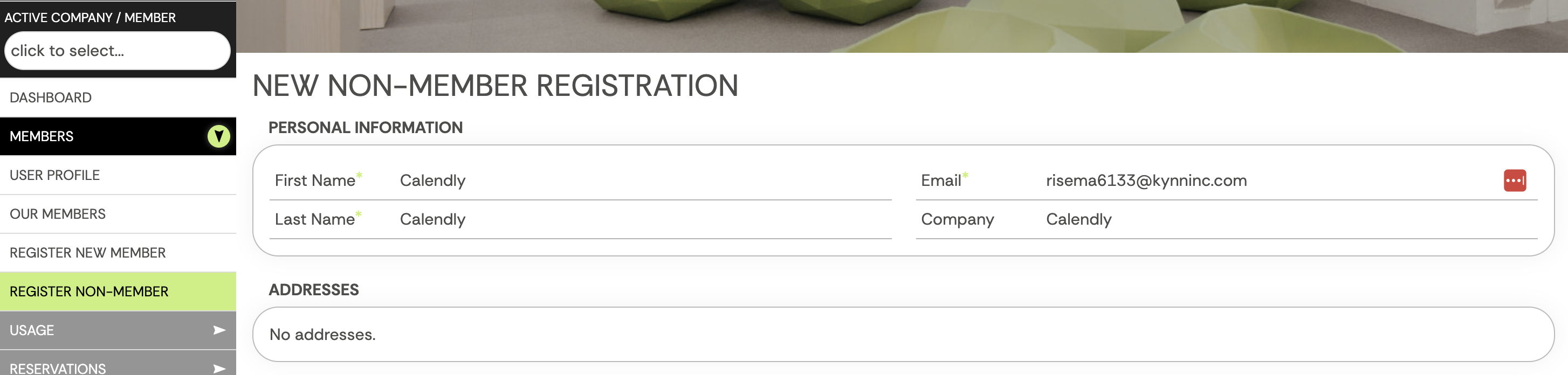
- Go to Members > Register New Non-Member
- Enter the following:
- First Name: Calendly
- Last Name: Calendly
- Company: Calendly
- Email:
- You can use a real email if you want notifications, or
- Generate a temporary email using Temp Mail
- Fill in any additional required fields and click Save
Step 2: Connect the Google Calendar Integration
Deskworks syncs Calendly bookings through your Google Calendar connection.
- If you have not set up your Google Calendar integration yet:
- Follow steps 1-7 under "Connecting Deskworks to a Google Account" →
- If your Google Account is already connected:
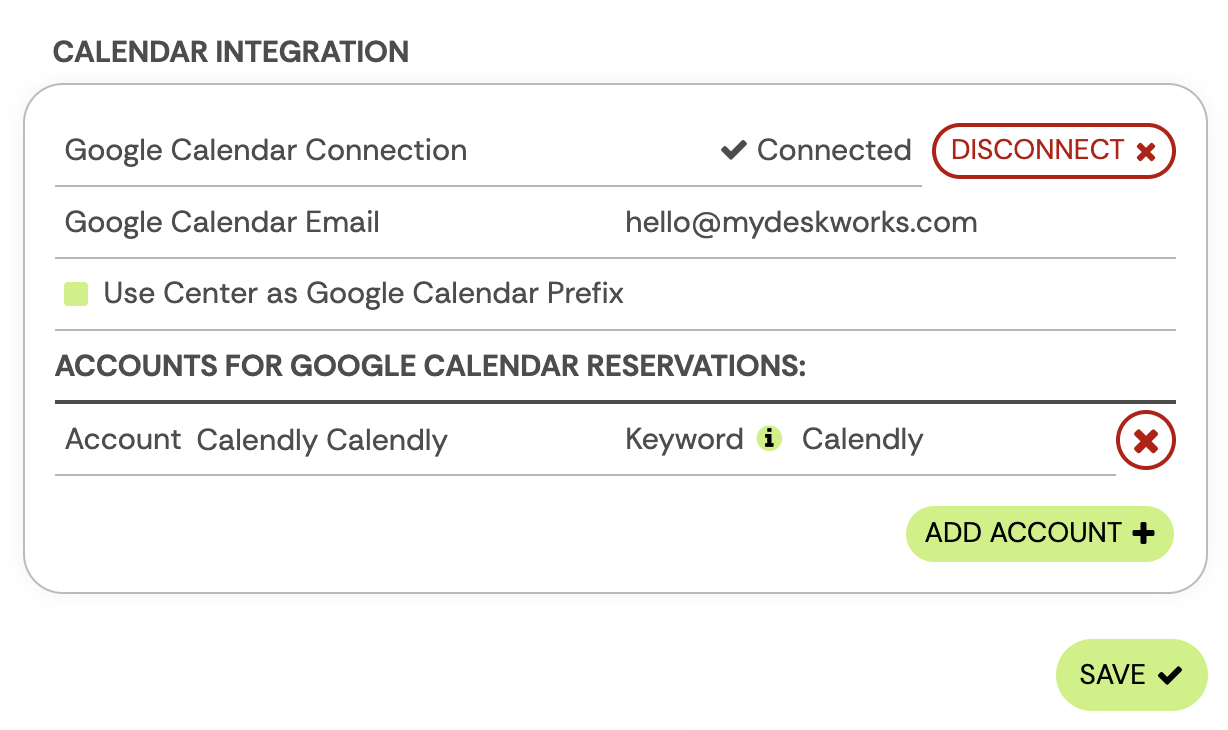
- Go to Setup > Settings
- Find the Calendar Integration section
- Click Add Account
- Search for and select the Calendly user you created in Step 1
- Add a Keyword
- This should be a word that appears on all Calendly events, like "Calendly"
- Deskworks searches the reservation’s title and comments for this keyword
- Click Save
Step 3: Create a Reservation Category
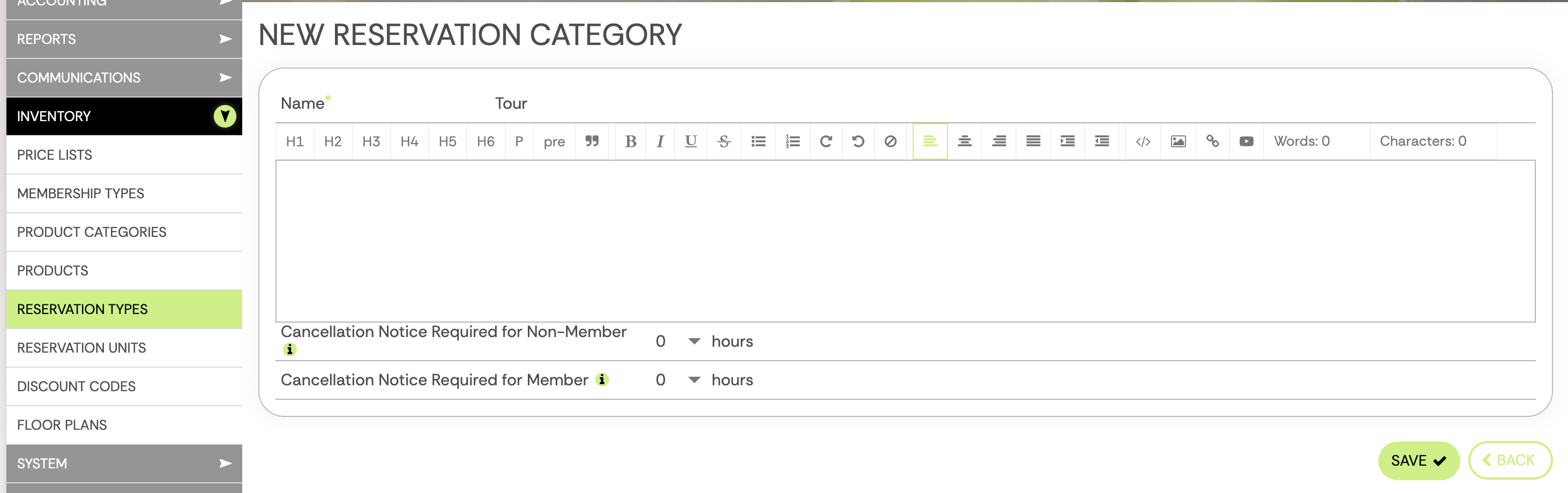
- Go to Inventory > Reservation Category/Type
- Click Add
- Name it Tour
- Click Save
- Optional: Drag it into your preferred calendar position
Step 4: Create a Reservation Unit
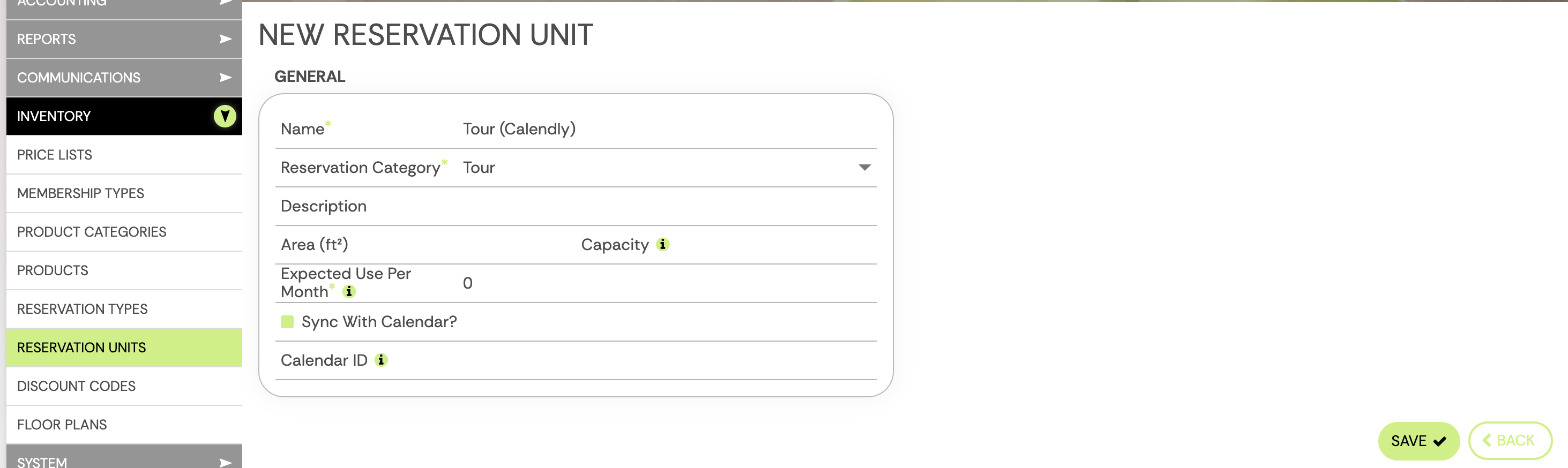
- Go to Inventory > Reservation Units
- Click Add
- Enter:
- Name: Tour (Calendly)
- Reservation Type: Tour
- Add any additional details as needed
- Check Sync with Calendar?
- If you leave the Calendar ID field blank , Deskworks will automatically create a new calendar in Google for you
- If you already have a Tours calendar in Google, paste the calendar’s ID into the Calendar ID field
- Click Save
After saving:
- Configure the Reservation Calendar Rules if needed
Step 5: Confirm the Google Calendar
Once syncing is enabled:
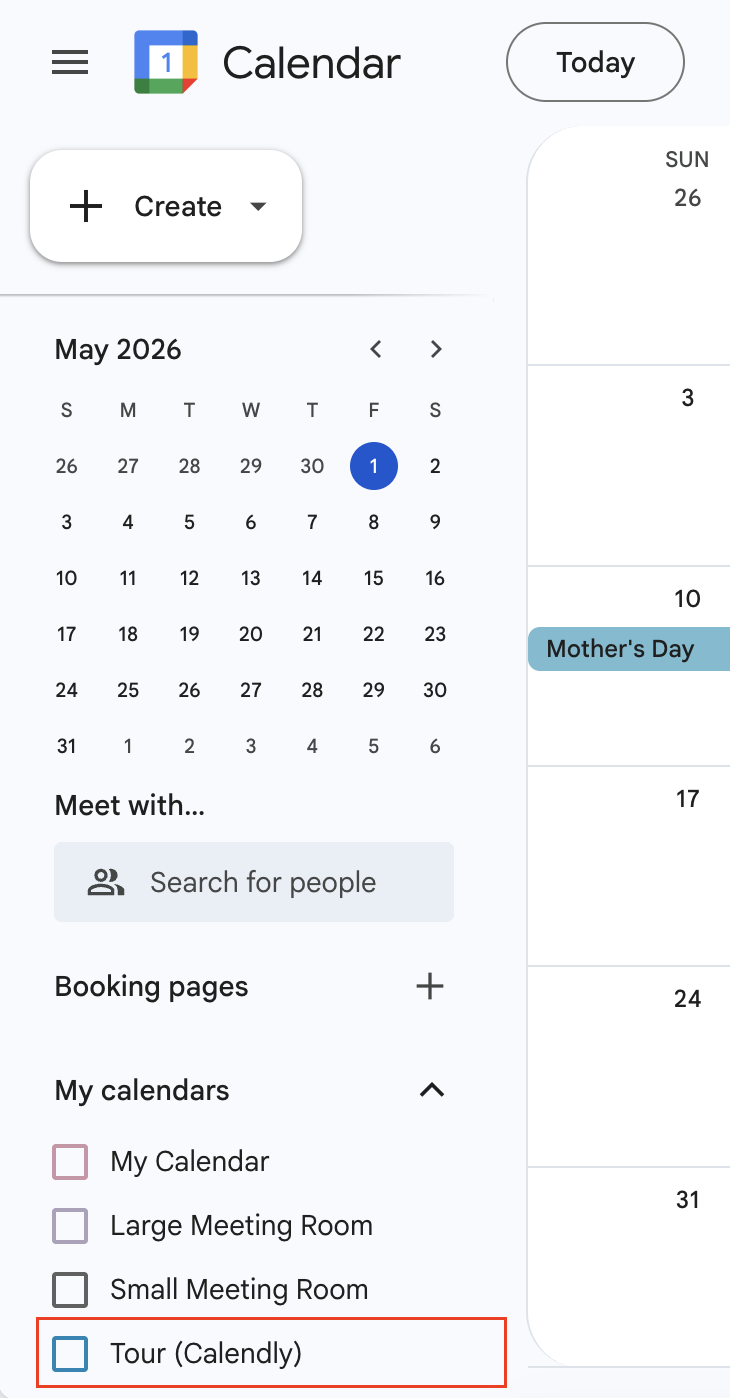
- Go to your Google Calendar
- Confirm that a new Tour (Calendly) calendar has been created under My Calendars
Step 6: Update Calendly Settings
Now, configure Calendly to send bookings to your Tours calendar:
- In Calendly, go to Availability > Calendar Settings
- Update the “Calendar to add events to”
- Select your Tour (Calendly) calendar
Step 7: Test the Integration
Once everything is set up, it’s important to confirm that bookings are syncing correctly.
- Create a test booking through Calendly
- Check Deskworks to confirm the reservation appears on your calendar
If the booking does not appear:
1. Check for calendar conflicts in Deskworks
- Go to your Dashboard and look for calendar conflict notifications
- Deskworks will also send an email with details about the conflict
- Use that information to troubleshoot (e.g., missing keyword, no account to sync with, etc.)
2. If there are no conflicts and no booking in Deskworks:
- Go to your Google Calendar
- Confirm that the Calendly booking was added to your Tour calendar
- If the booking is NOT on the Tourscalendar:
→ This is the issue
→ Go back to Step 6 and review your Calendly “Add to calendar” settings
- If the booking is NOT on the Tourscalendar:
Was this article helpful?
That’s Great!
Thank you for your feedback
Sorry! We couldn't be helpful
Thank you for your feedback
Feedback sent
We appreciate your effort and will try to fix the article