The Deposit/Tax Report helps you reconcile payments with the invoices and invoice items they were applied to, while also showing taxable amounts, non-taxable amounts, and taxes collected.
Tax rates are established for each location under Setup > Facilities
Note: This report is available on the Pro Plan. If you’d like access or want to learn more about upgrading, submit a support ticket and our team will be happy to help.
Before Pulling the Payment Reconciliation Report
Assign payments for the reporting period so Deskworks can accurately associate each payment with the appropriate invoice items:
- Go to ACCOUNTING > BULK PAYMENT ASSIGNMENTS
- Select the date range for the report period you need
- Click SELECT ALL at the top
- Click ASSIGN PAYMENTS at the bottom.
- Go to REPORTS > DEPOSIT/TAX REPORT and pull the report.
Using the Deposit/Tax Report
The report is organized by deposit date, with each date further grouped by payment method:
- American Express
- Visa/Mastercard/Discover
- Cash/Check (which includes ACH, Direct Debit, EFT)
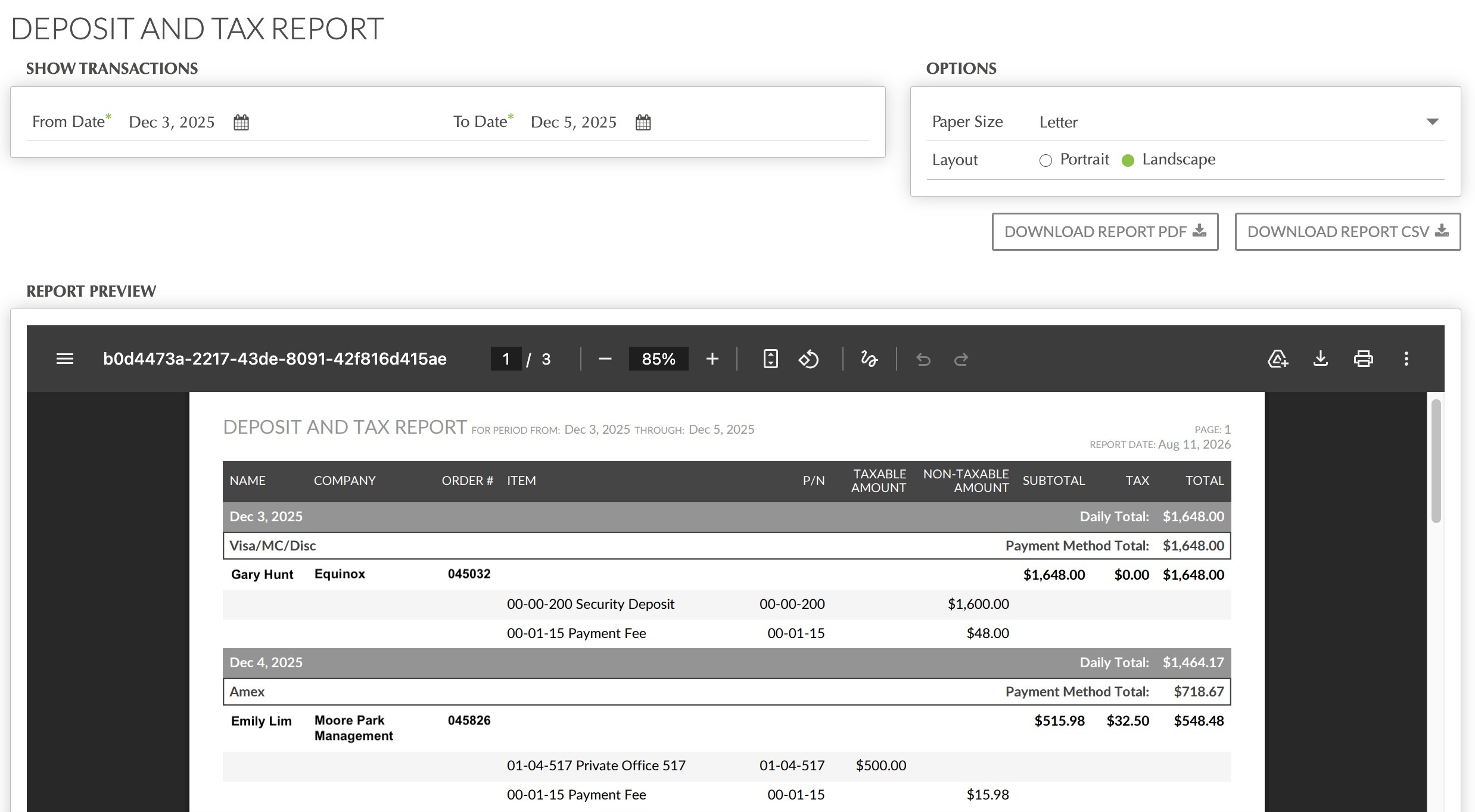
For each deposit, you’ll see the user's name/company, invoice number, and transaction details. The report shows the taxable amount, non-taxable amount, subtotal, tax, and total for the invoice, along with the taxable and non-taxable amounts of the individual invoice items the payment was applied to.
This makes it easier to trace a payment back to the related invoice charges and confirm how taxes were calculated and applied.
At the bottom of the report, you’ll find a summary of total taxable and non-taxable amounts, charges, tax, and grand total, along with totals by category such as Memberships, Registration, Rental Hours, Print, and Services.
Was this article helpful?
That’s Great!
Thank you for your feedback
Sorry! We couldn't be helpful
Thank you for your feedback
Feedback sent
We appreciate your effort and will try to fix the article