Summary
Deskworks' Outlook Calendar integration syncs reservations made in Deskworks to the Outlook calendar for your center and vice versa. You can choose to sync the calendar for any particular resource: conference room, office, etc. This is typically used if you have Outlook-enabled tablets next to conference room doors that display the reservations for the room.
Enable Integration
To enable the integration, open a ticket with Deskworks requesting the integration. Once returned to you, connect as follows:
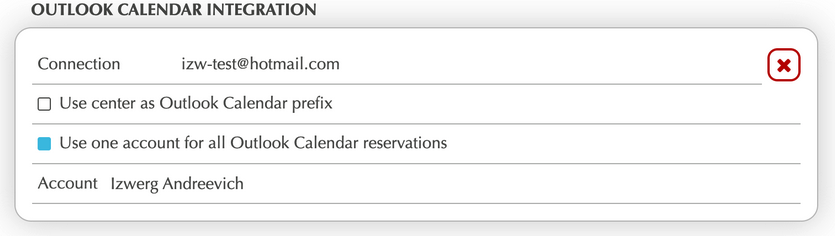
- Go to SETUP > INTEGRATIONS SETUP. Look for OUTLOOK CALENDAR INTEGRATION.
- Connect to your Outlook Calendar with the email address used for Outlook.
- If you want to see in Outlook that a particular reservation was created by Deskworks, click "Use center as Outlook Calendar prefix," and "Deskworks:" will display before the rest of the reservation information on Outlook.
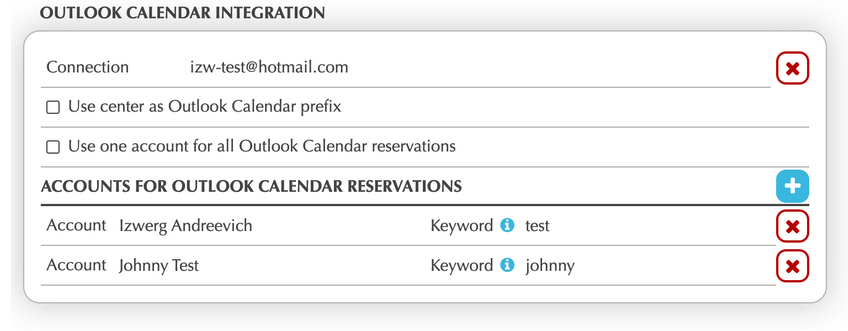
- You can either use one Deskworks account to receive all Outlook Calendar reservations or select multiple Deskworks accounts that can accept reservations made by Outlook. If selecting multiple accounts, use a keyword that will always be sent from Outlook when a reservation is made.
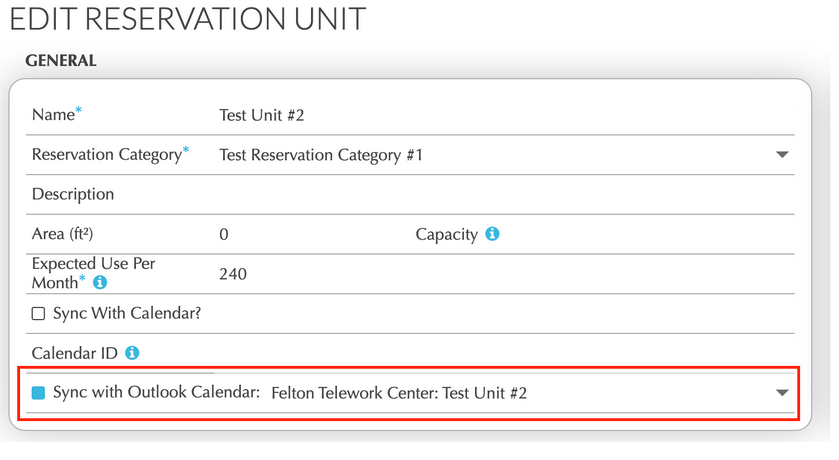
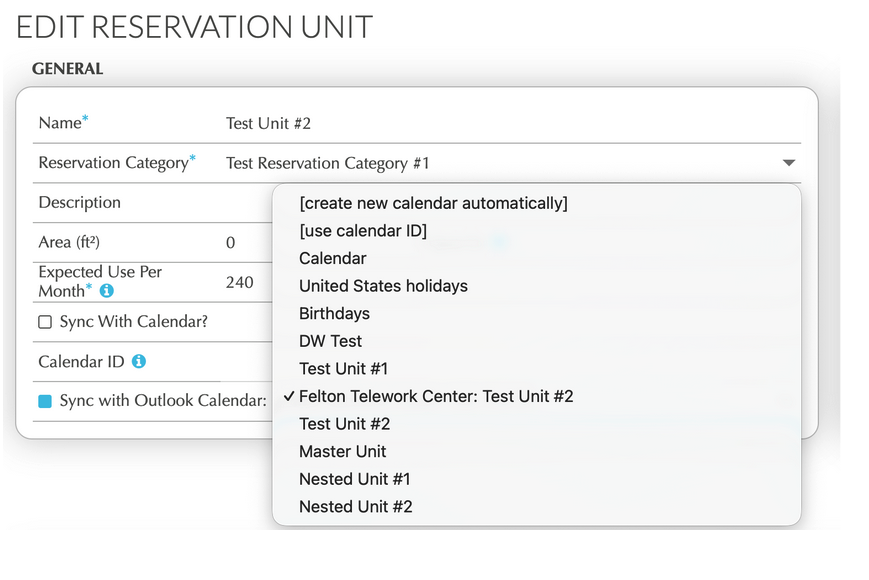
- Go to INVENTORY > RESERVATION UNITS and click the EDIT icon for any Reservation Units that you want to sync to Outlook, selecting the correct Outlook unit from the dropdown.
Notes
FROM Deskworks TO Outlook Calendar
- The Reservation Title is pushed to Outlook Event Subject. If reservation title is empty, the user full name + company name is pushed to Outlook Event Subject.
- The Reservation Note is pushed to Outlook Event Description.
- At the time of initial connection, Past Reservations are NOT pushed to Outlook.
FROM Outlook Calendar TO Deskworks
- Reservation Title is pulled from Outlook Event Subject.
- Reservation Note is pulled from Outlook Event Description. All HTML code is removed from the description.
- Past Outlook Events are not pulled.
- If an Outlook Event being pulled overlaps with an existing reservation, a reservation conflict is created on the Deskworks Dashboard.
- If an Outlook Event being pulled violates a reservation rule (e.g. duration is less than min limit), a reservation conflict is created on the Deskworks Dashboard.
- If there is a reservation conflict on the Deskworks Dashboard and you update the Outlook Event that caused that conflict, but the update caused a new conflict, the existing reservation conflict is updated instead of creating a new one.
- The Outlook Event being pulled is mapped to the Deskworks User through a keyword match in either the Subject or the Description.
- If no keyword matches, the Outlook Event is ignored.
- If multiple keywords match, the first keyword/user is used.
Reservation Unit → Sync with Outlook Calendar
- When the synchronization is enabled for a Reservation Unit, all future/current reservations are pushed to Outlook Calendar. And all future/current Outlook Events are pulled to Deskworks.
- If something goes wrong and you need full re-synchronization, disable synchronization for a unit, save, then re-enable synchronization again.
Was this article helpful?
That’s Great!
Thank you for your feedback
Sorry! We couldn't be helpful
Thank you for your feedback
Feedback sent
We appreciate your effort and will try to fix the article