To setup Front Desk on a tablet at your location:
- Open a ticket and request Front Desk. Include:
- Your specific location name
- Your Deskworks URL where the tablet will be used.
- The Center ID number for the location where the tablet will be used, which is at the end of any URL when you are on a page for that location:

- The email address you want to use for setting up Front Desk.
- The email addresses for any staff members who should receive notifications from Front Desk (for arrivals, etc.)
- We will return Front Desk to you, fully configured for your location.
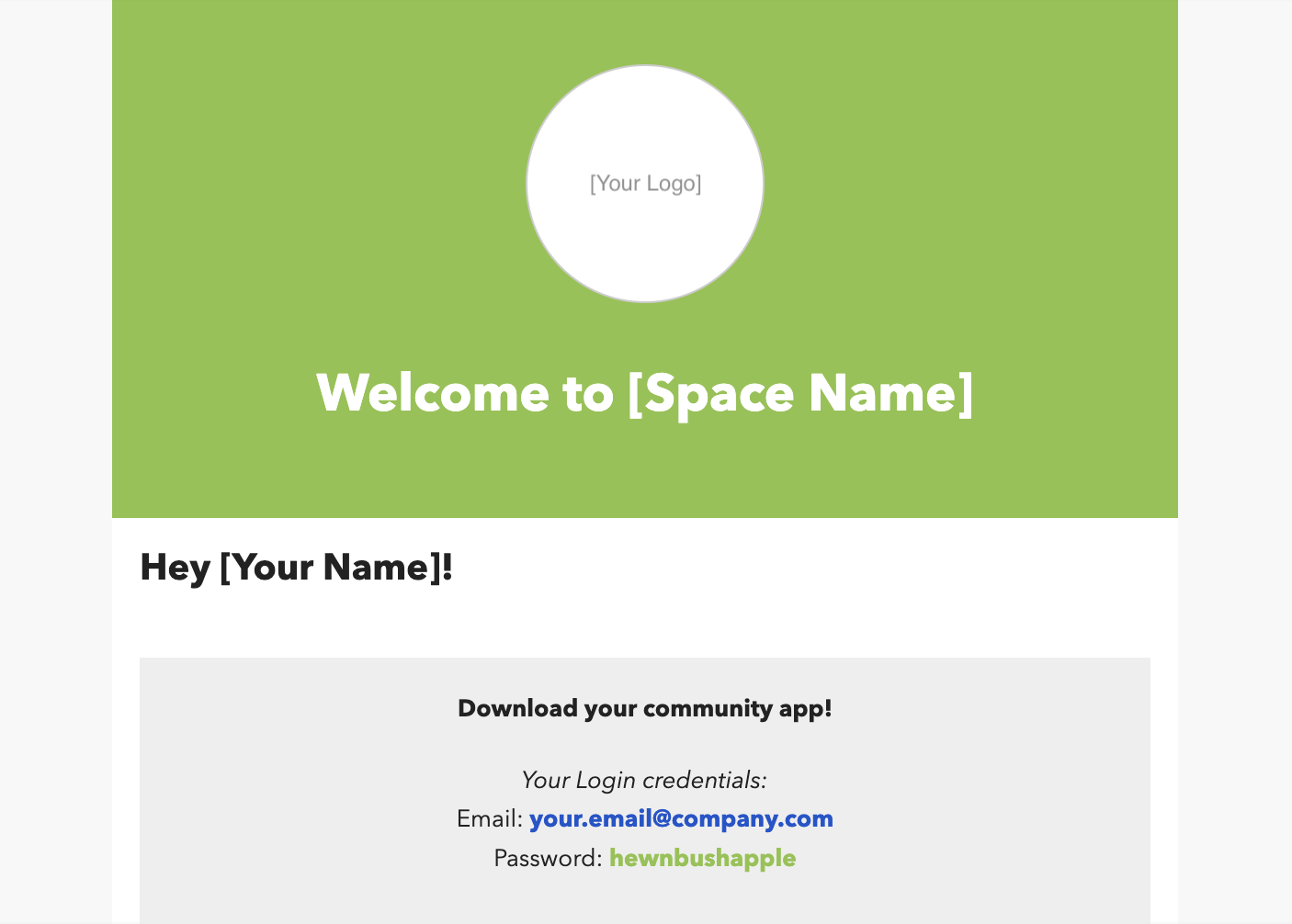
- You will receive an email with your login (your email address) and a password for setup.
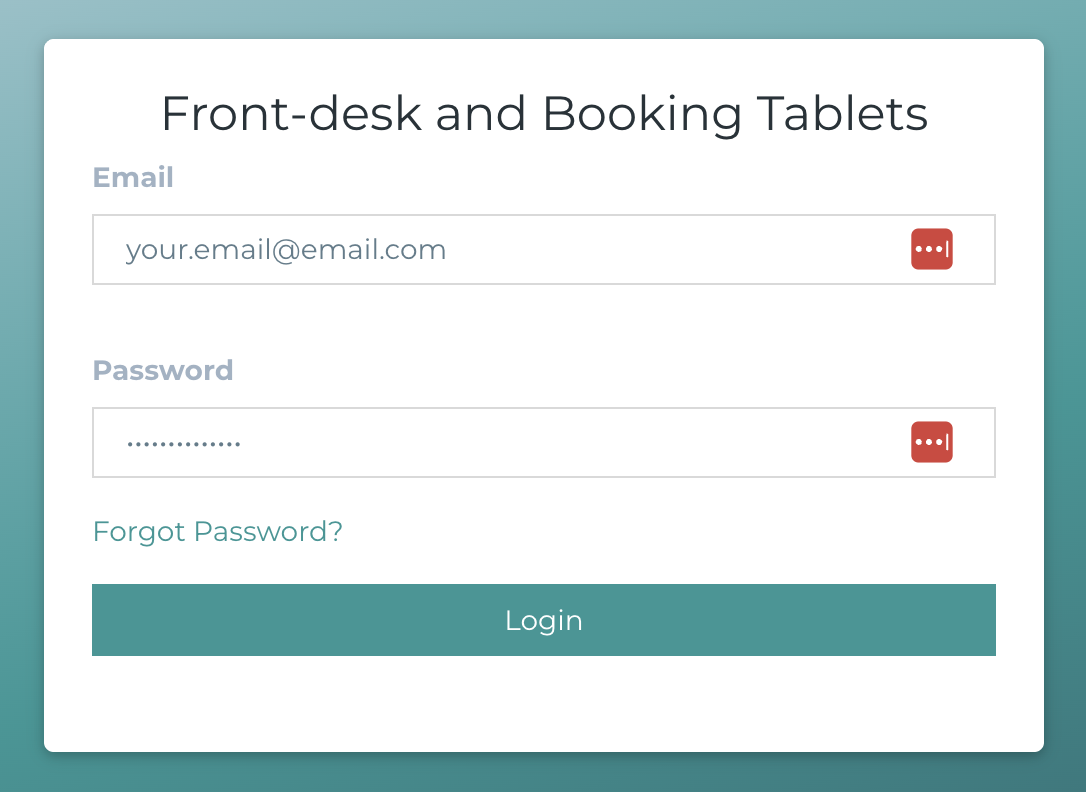
- On the tablet, go to https://dashboard.coworksapp.com/tablet-login
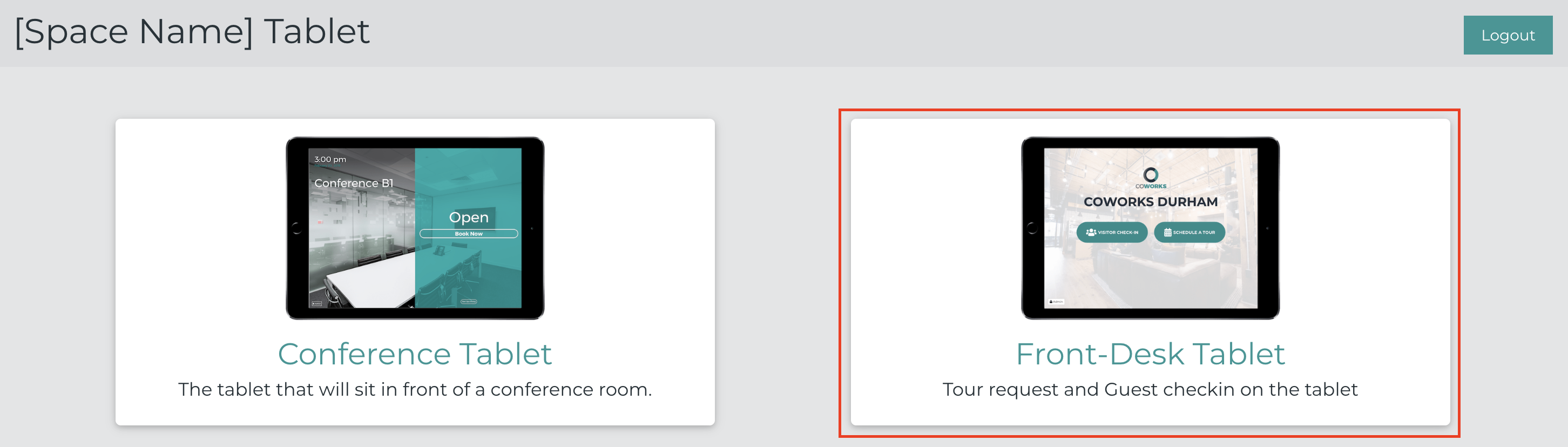
- Select Front Desk Tablet
- That’s it! It’s all ready for your visitors and guests of your members. The tablet app is connected to all of your existing members and co-members and is continually updated.
Pro tip: Before setting up your tablet, be sure to go to your tablet's settings and turn off the "Auto Lock" or Sleep settings. This will prevent your tablet screen turning off automatically. This app is designed to be always on and available to your customers!
If you’re using an iPad, do the setup in Safari. Once at the URL, press the Safari Share (Upload) button in the top right of the screen.
- Tap Add to Home Screen
- Tap Add
Expect more features coming with Front Desk Concierge!
Was this article helpful?
That’s Great!
Thank you for your feedback
Sorry! We couldn't be helpful
Thank you for your feedback
Feedback sent
We appreciate your effort and will try to fix the article