The Front Desk Check-In app lets you set up a visitor check-in station at your front desk using a tablet or other WiFi-enabled device.
It is designed for guests and visitors of your members, including clients, team members, delivery drivers, and anyone else arriving at the space. Front Desk Check-In connects directly with your Deskworks member database, so the member directory visitors see stays current as members are added, removed, or updated in Deskworks.
Optional Check-In Options
Front Desk Check-In also supports additional ways to make visitor arrival faster. These features can be enabled separately depending on how you want guests to check in:
- Visitor Pre-Registration: Members or admins can pre-register visitors before they arrive. Visitors can also be sent a form to complete their information ahead of time. Learn more about Visitor Pre-Registration →
- QR Code Check-In: Display a QR code that visitors can scan with their own phone to complete the check-in process without touching the front desk tablet. Learn more about QR Code Check-In →
The standard Front Desk Check-In process is outlined below.
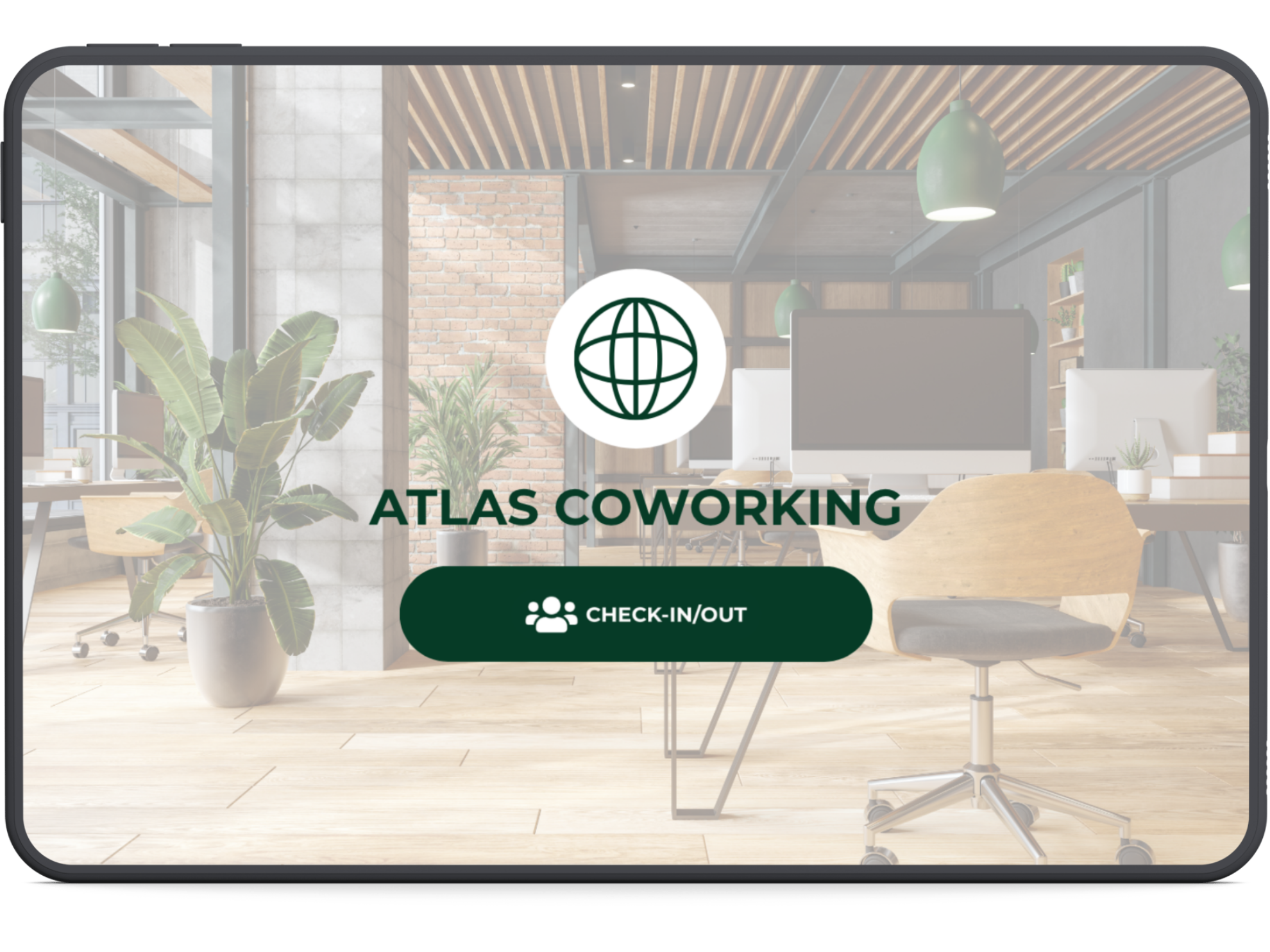
Branded Check-In Experience
Front Desk Check-In displays your logo, location, and color scheme, creating a branded experience for visitors as soon as they arrive.
Checking In to Visit a Member
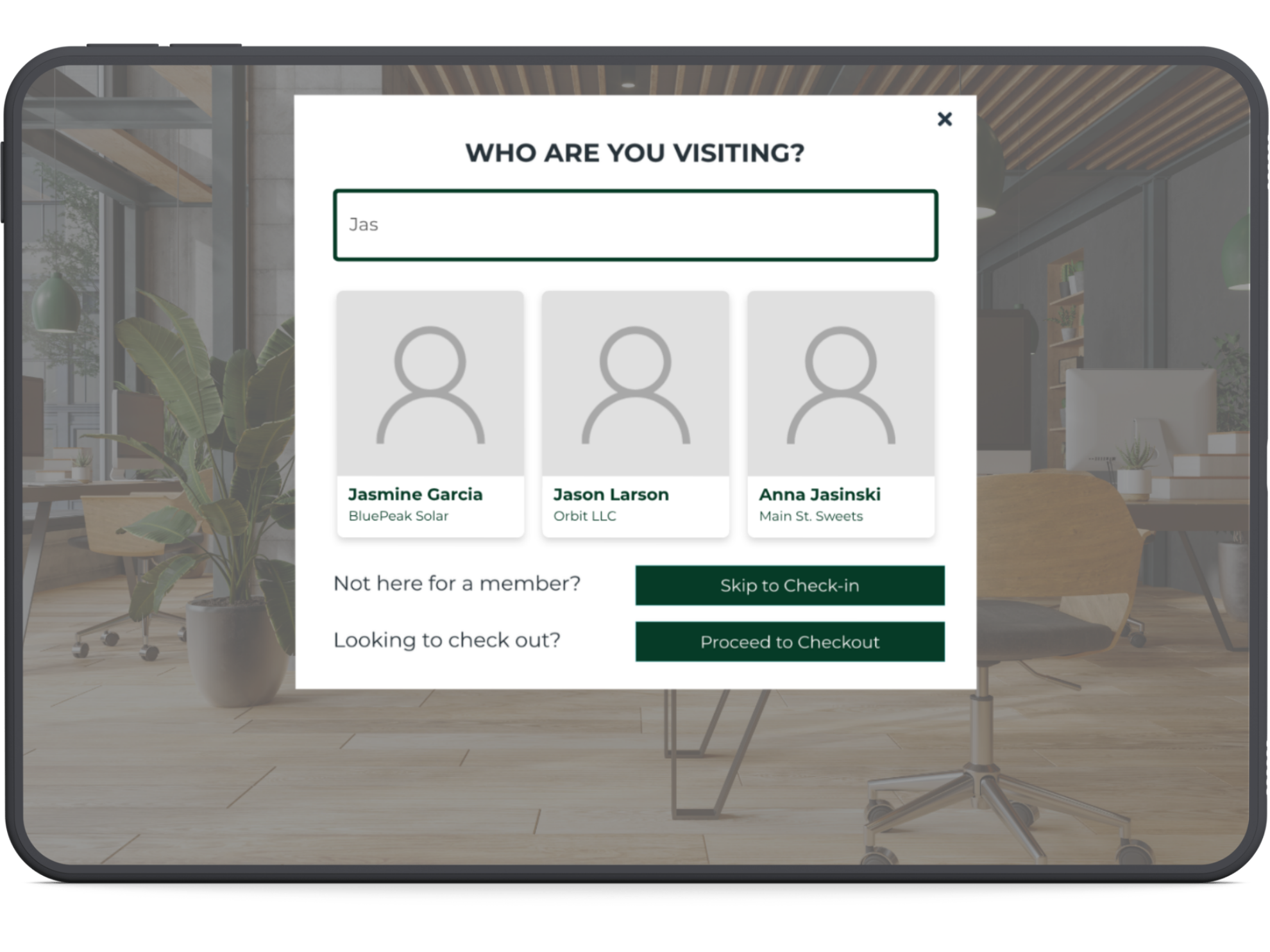
When a visitor taps Check-In/Out, they will first be asked who they are visiting. They can start typing a member's name or company and select the person they are visiting from the list.
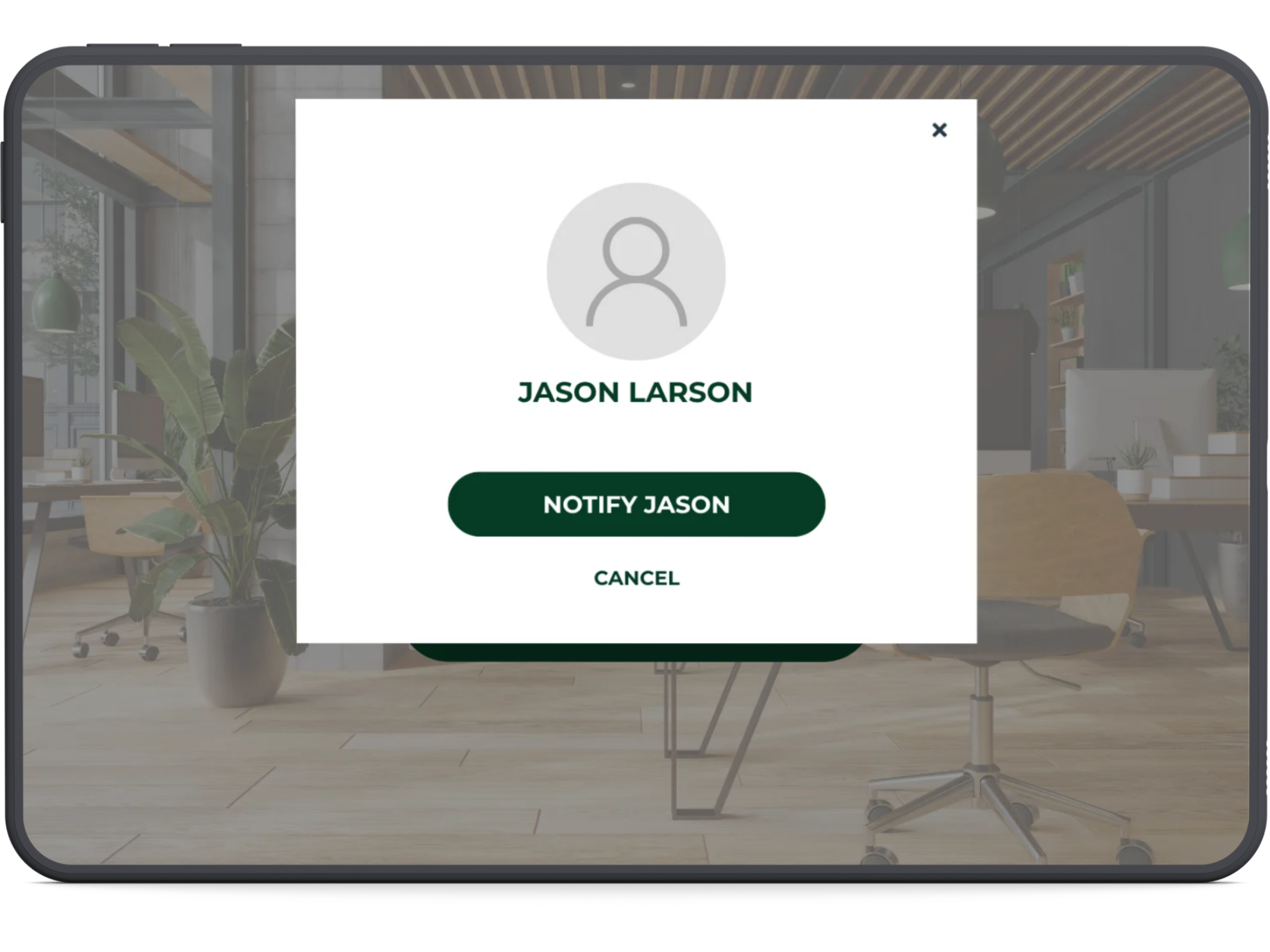
Once the member is selected, the visitor will have the option to notify them of their arrival.
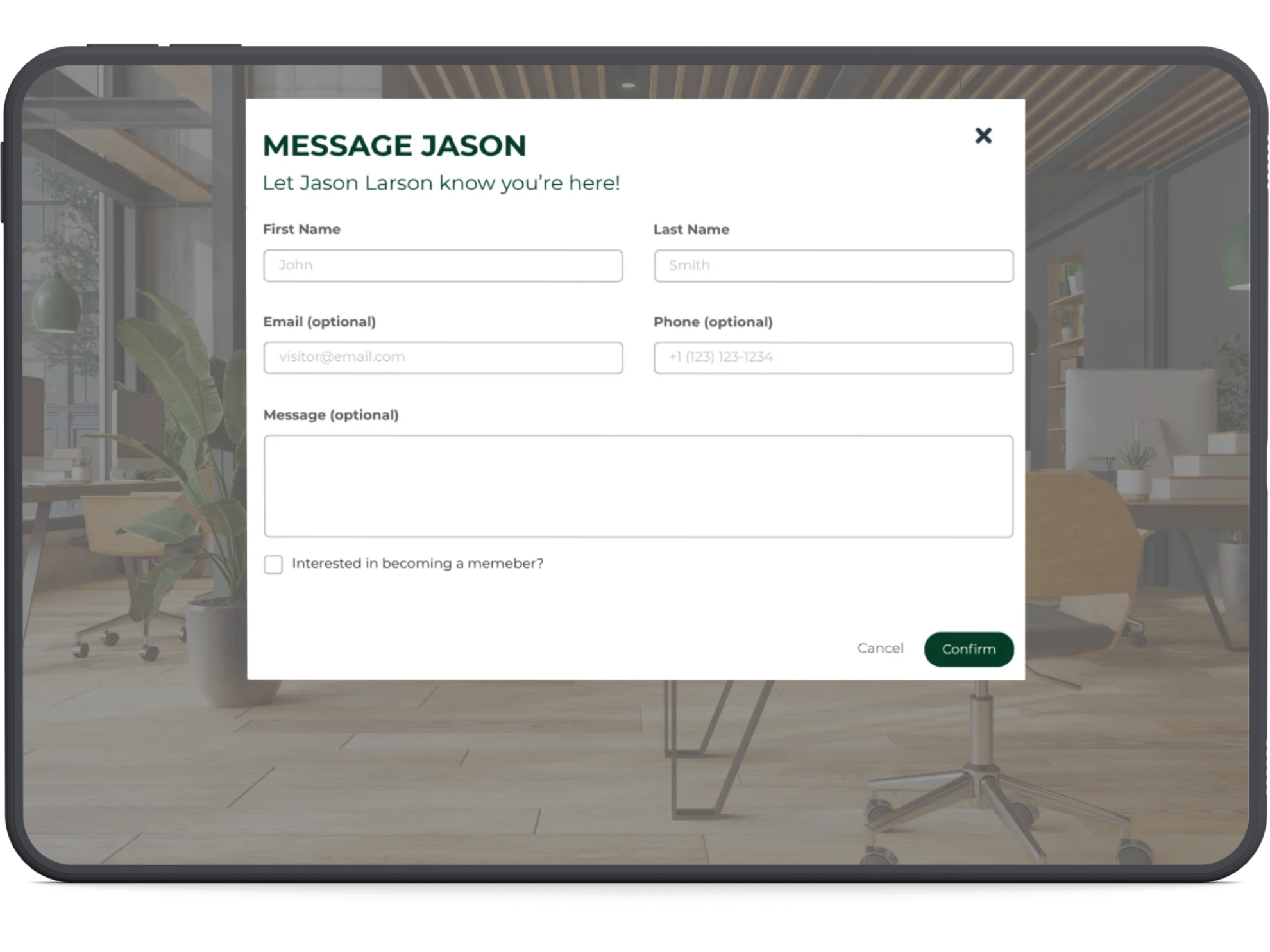
The visitor will then enter their name, optional contact information, and an optional message. Once they confirm their check-in, the member they are visiting will receive a text message and email notification letting them know their guest, package, delivery, or other visitor has arrived.
Reservation Check-In
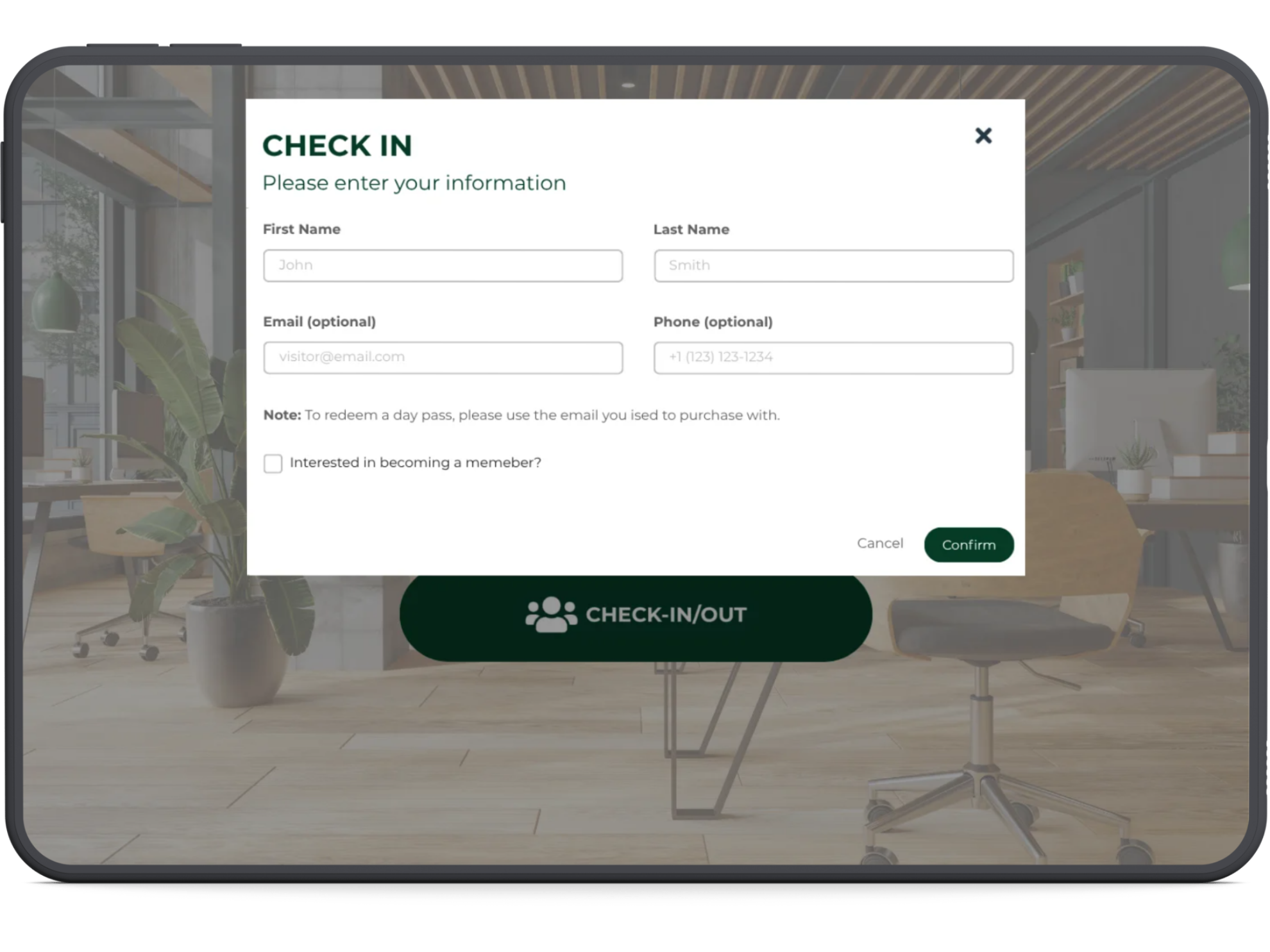
If someone arrives for a reservation or day pass rather than to visit a member, they can select Skip to Check-In.
This opens a short check-in form. Once the visitor confirms their arrival, a notification is sent to admin letting your team know they are there.
Checking Out
When the visitor is ready to leave, they can return to the tablet and select Proceed to Checkout to check out.
Setting Up Front Desk Check-in
Need help getting started? Follow our guide to Setup Front Desk Check-in →
Was this article helpful?
That’s Great!
Thank you for your feedback
Sorry! We couldn't be helpful
Thank you for your feedback
Feedback sent
We appreciate your effort and will try to fix the article