Front Desk Check-In includes an optional Visitor Pre-Registration feature that allows members and administrators to register guests before they arrive.
Members can either fill out the registration form for their guest or send the form directly to the visitor to complete ahead of time. Once registered, the visitor appears in Front Desk Check-In as an expected guest on the date of their visit.
Why Use Visitor Pre-Registration?
In many coworking spaces, visitor registration starts when the guest arrives at the front desk. With Visitor Pre-Registration, members and admins can register guests ahead of time instead.
This helps your team:
- Prepare for incoming guests
- Coordinate staff or building access when needed
- See who is expected throughout the day
- Give visitors a faster check-in experience when they arrive
Enable Visitor Pre-Registration
Visitor Pre-Registration is enabled by Deskworks Support.
If you are already using Front Desk Check-In, open a support ticket and ask us to enable Visitor Pre-Registration. Once enabled, the Visitor Registration Form will be available in your Deskworks sidebar and the Front Desk Check-In app will ask visitors if they pre-registered.
Front Desk Check-in is a paid add-on. If you’re not already using Front Desk Check-in and would like to get started, contact us for pricing and setup.
How Visitor Pre-Registration Works
1. Register the Visitor
Members can open the Visitor Registration Form from the Deskworks sidebar.
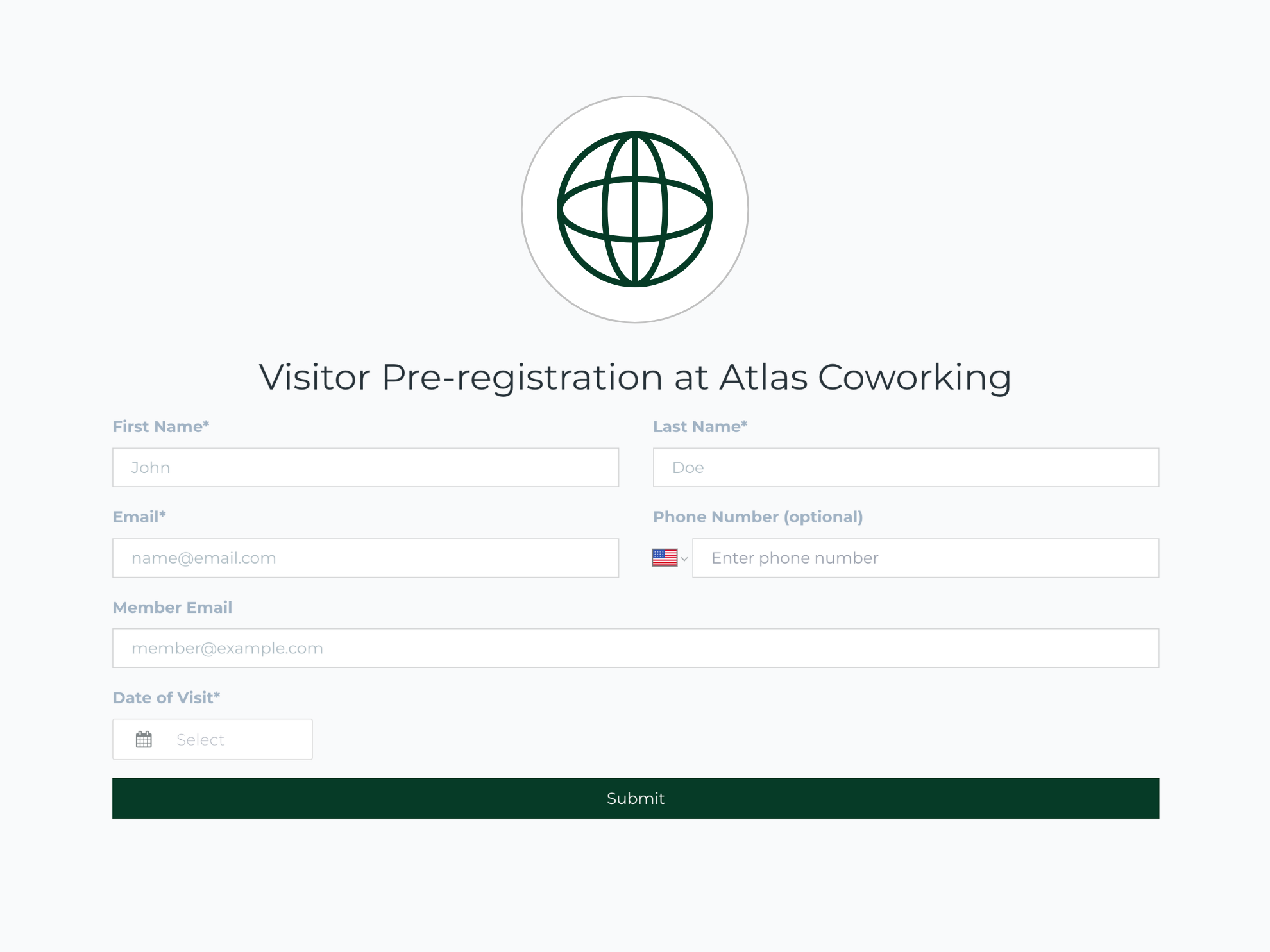
They can either:
- Fill out the form for their visitor
- Send the form URL to the visitor so they can enter their own information before arriving
The form is hosted on your space's Deskworks subdomain and collects:
- First name
- Last name
- Email address
- Optional phone number
- Planned visit date
- The member they are visiting
2. A visit record is automatically created
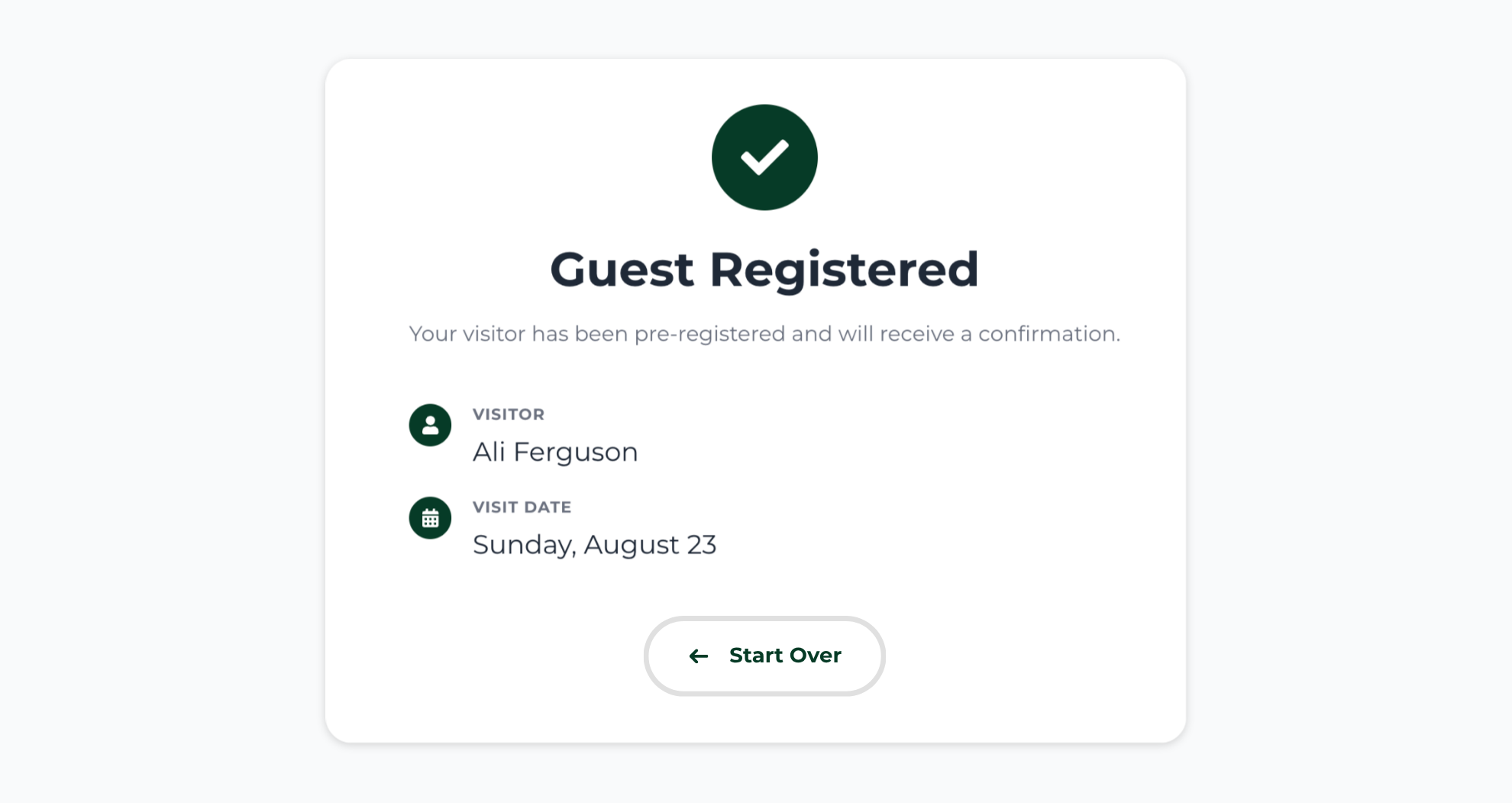
When the form is submitted, the platform automatically:
- Creates a contact record for the visitor
- Schedules a future check-in record tied to the visitor’s planned visit
- Stores the visitor’s scheduled arrival date
- Sends the visitor a confirmation email that they have been registered as a guest with their expected arrival date.
3. The Visitor Checks In When They Arrive
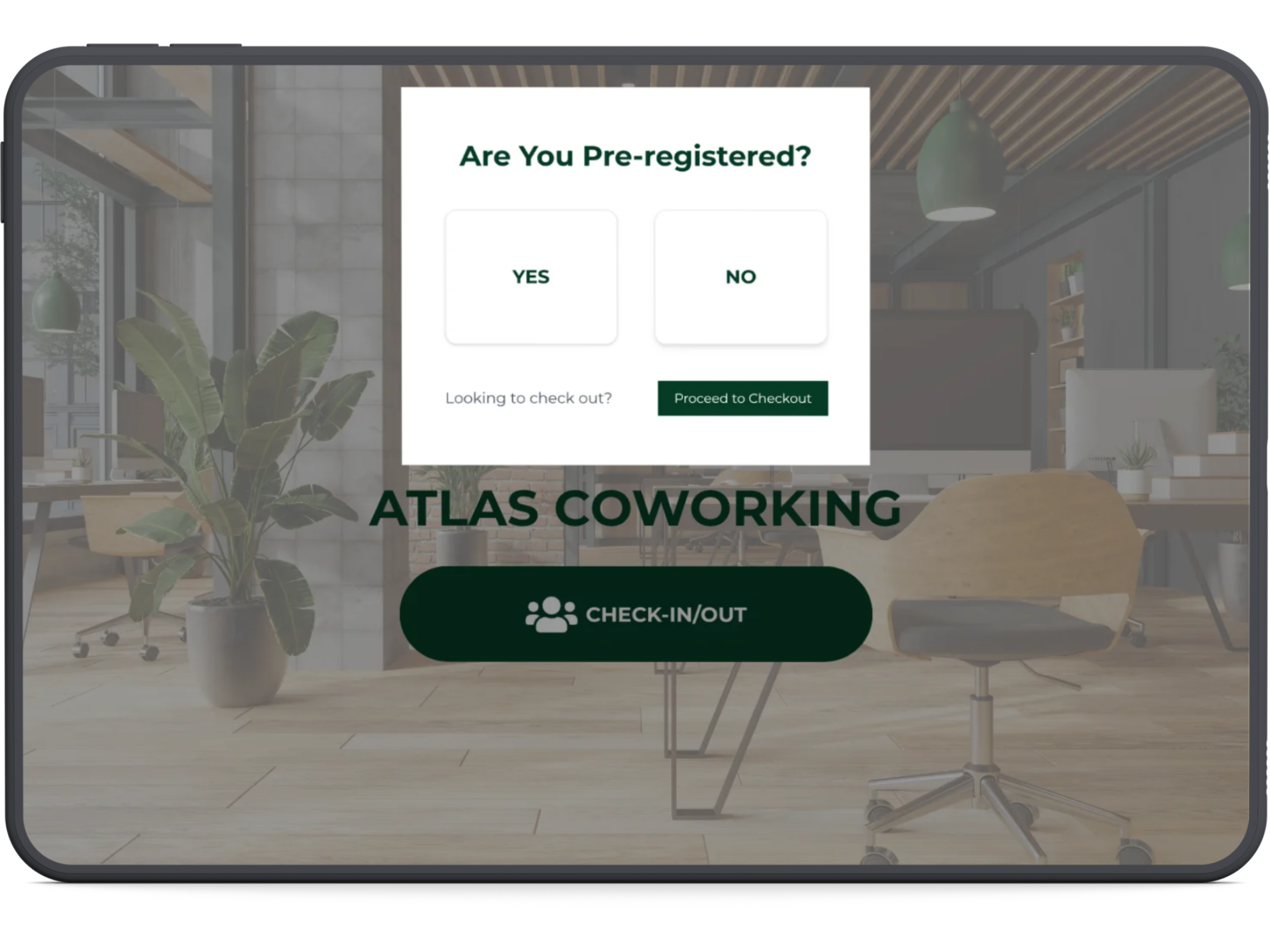
When the visitor arrives, they can check in from the Front Desk Check-In tablet. The check-in screen will ask whether they have been pre-registered.
The visitor can search for their name and select their existing registration.
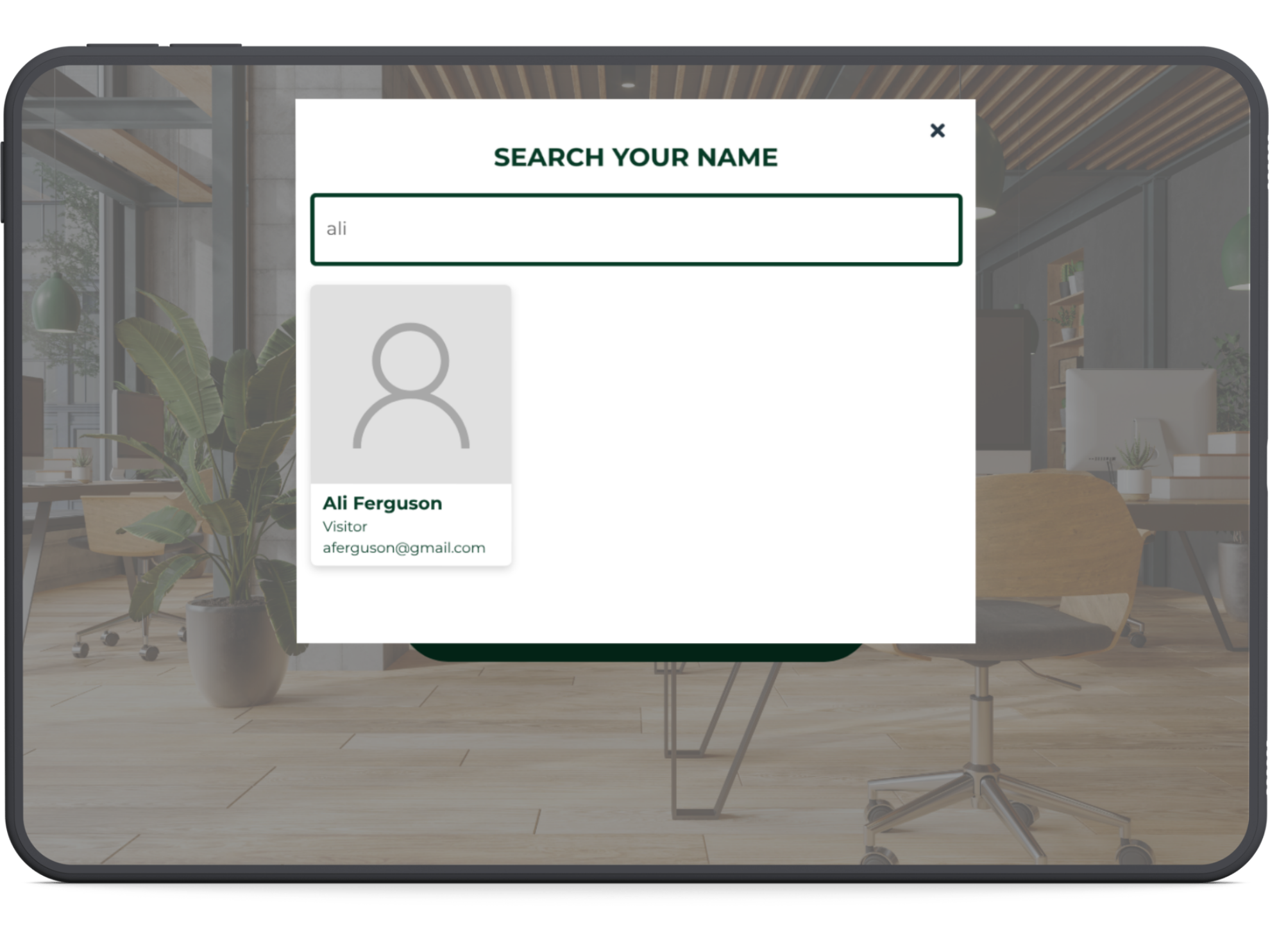
Because their information has already been collected, they do not need to re-enter details such as their name, email address, or phone number. They can complete their check-in and notify the member they are visiting.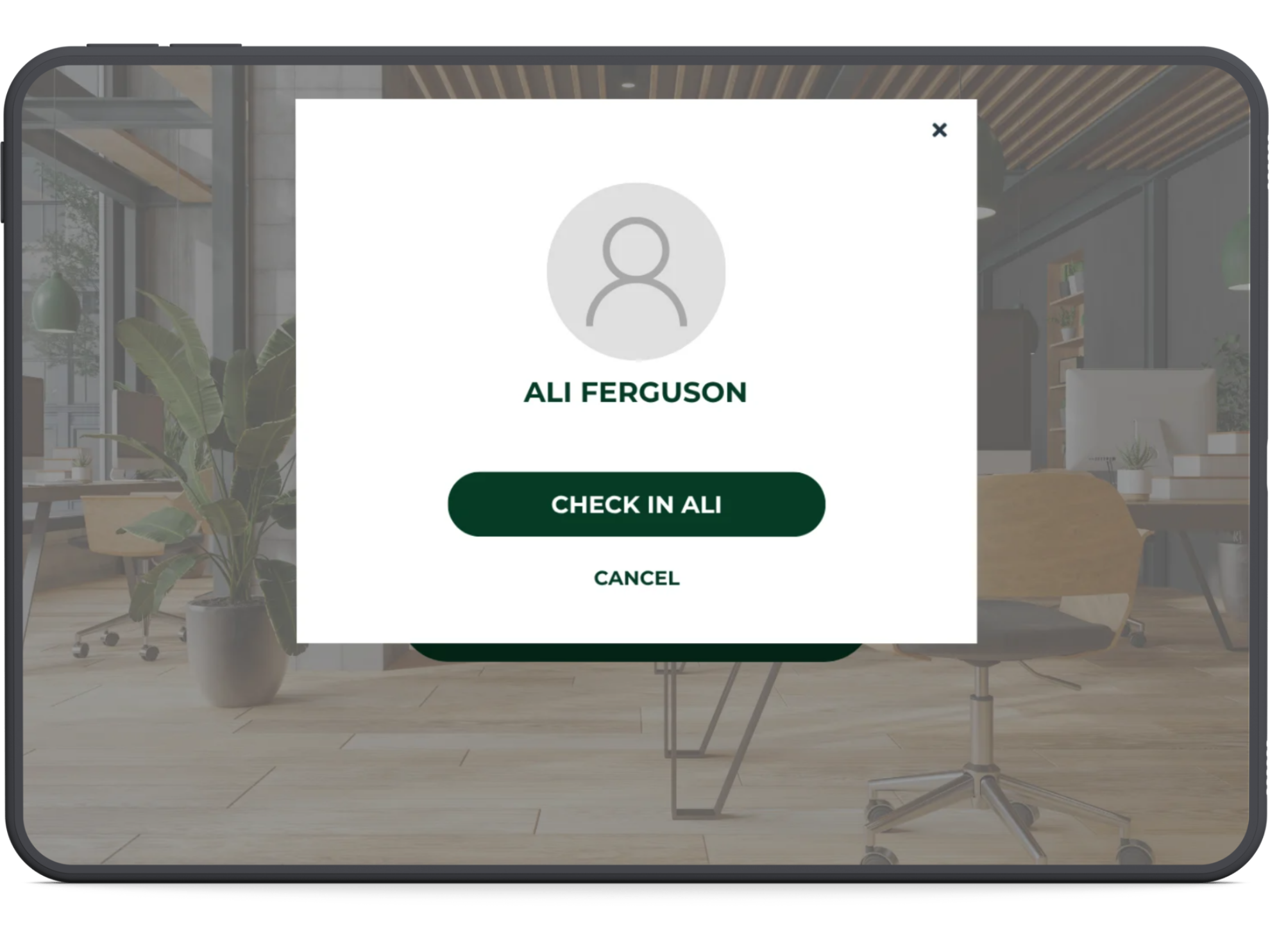
Email Notifications
1. Visitor Confirmation
After registration, the visitor receives an email confirming who registered them, where they are visiting, and their scheduled visit date.
For example:
You've been registered by [Member Name] as a visitor at [Space Name]. Your scheduled visit is on [Visit Date].
Managers can also add a custom message to this email for arrival instructions, directions, parking information, building access details, or anything else guests should know before their visit.
2. Manager Notification
Managers can also receive a notification when a new visitor is registered.
For example:
A new visitor, [Guest Name], has been registered in your space by [Member Name].
Managers can turn these notifications off in their notification preferences if they do not need them.
Was this article helpful?
That’s Great!
Thank you for your feedback
Sorry! We couldn't be helpful
Thank you for your feedback
Feedback sent
We appreciate your effort and will try to fix the article