Deskworks allows you to display a tax ID number for your business and your members’ businesses on invoices. You can also customize the tax ID label so it matches the term used in your region, such as ABN in Australia or VAT in Portugal.
Add your business tax ID to invoices
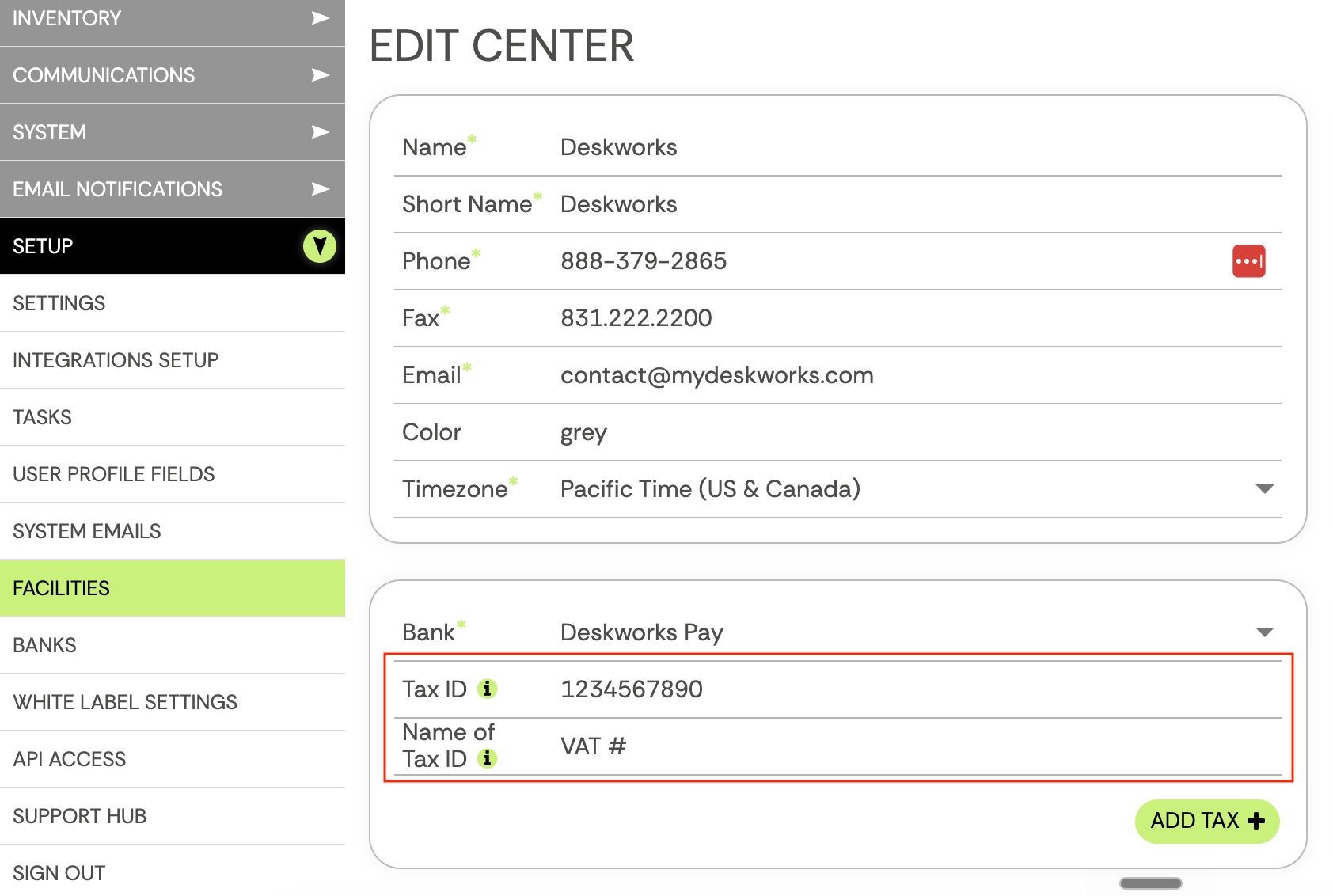
- Go to Setup > Facilities.
- Edit the facility you want to update.
- In the Tax ID field, enter your company’s tax ID number.
- In the Name of Tax ID field, enter the label you want shown on invoices (e.g. Tax ID, VAT #, ABN)
- Scroll down and click Save.
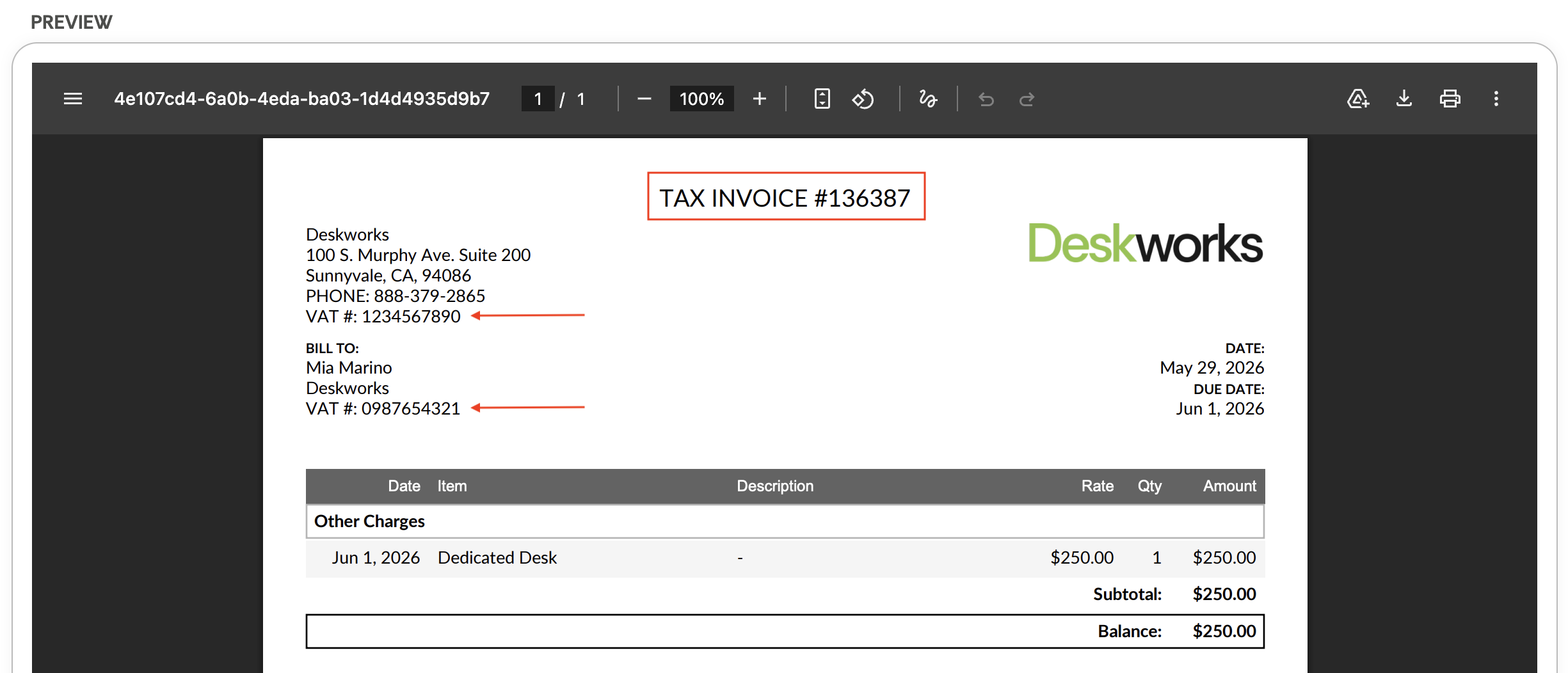
Once the tax ID has been added, it will appear on all PDF invoices under the business contact information. The invoice title will also change from Invoice to Tax Invoice.
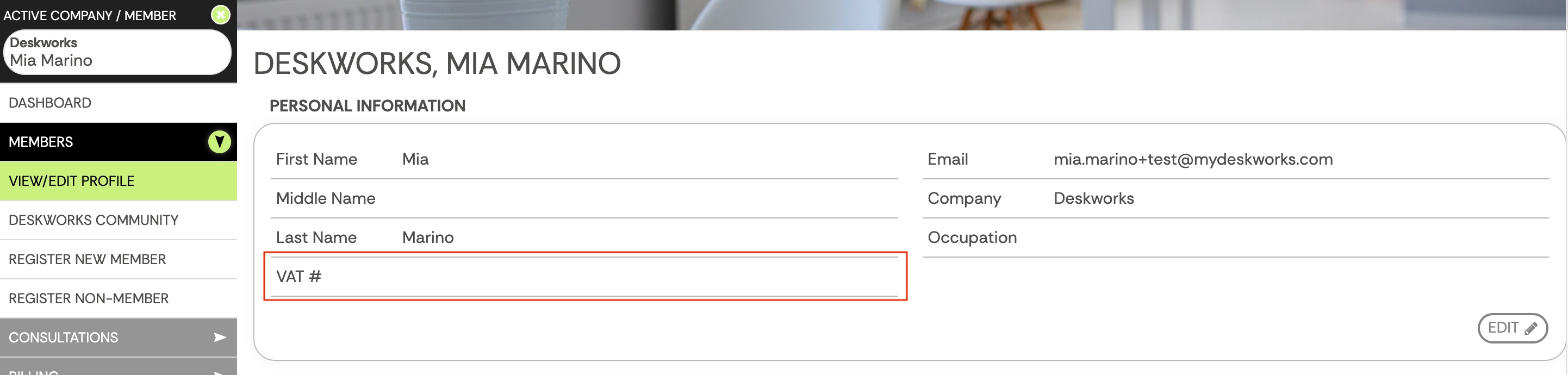
Adding your business tax ID activates the tax ID field on member profiles, in case you need to display a member’s tax number on their invoices.
Add a member’s tax ID to invoices
Follow the steps above to add your business tax ID, then:
- Go to Members > View/Edit Profile.
- Under Profile Information, click Edit.
- Find the tax ID field, and enter the member’s tax ID number.
- The member tax ID uses the same label entered under Setup > Facilities. For example, if your facility uses VAT # as the tax ID name, the member’s tax number will also display with that label.
- Click Save.
If a member tax ID is entered, it will appear on PDF invoices under the member’s contact information.
Was this article helpful?
That’s Great!
Thank you for your feedback
Sorry! We couldn't be helpful
Thank you for your feedback
Feedback sent
We appreciate your effort and will try to fix the article