Once the Docusign integration is set up and your template includes Docusign signature fields, you can send proposals and contracts for signature directly from Deskworks.
If you have not completed these steps yet, see:
Note: Before sending an agreement to a real recipient, make sure you are in the Production environment.

Go to SETUP > INTEGRATIONS SETUP, uncheck "Demo Environment", and select your Production account from the dropdown.

If Demo Environment is enabled, agreements will be sent through the Docusign Demo environment for testing only and any signatures will not be valid.
Create the Proposal or Contract
- Select the member profile you want to send the agreement to
- Go to BILLING > PROPOSALS/CONTRACTS
- Click Add
- Select the Template you want to use
- Complete the proposal details (start date, items, discount, etc.)
- Click SAVE.
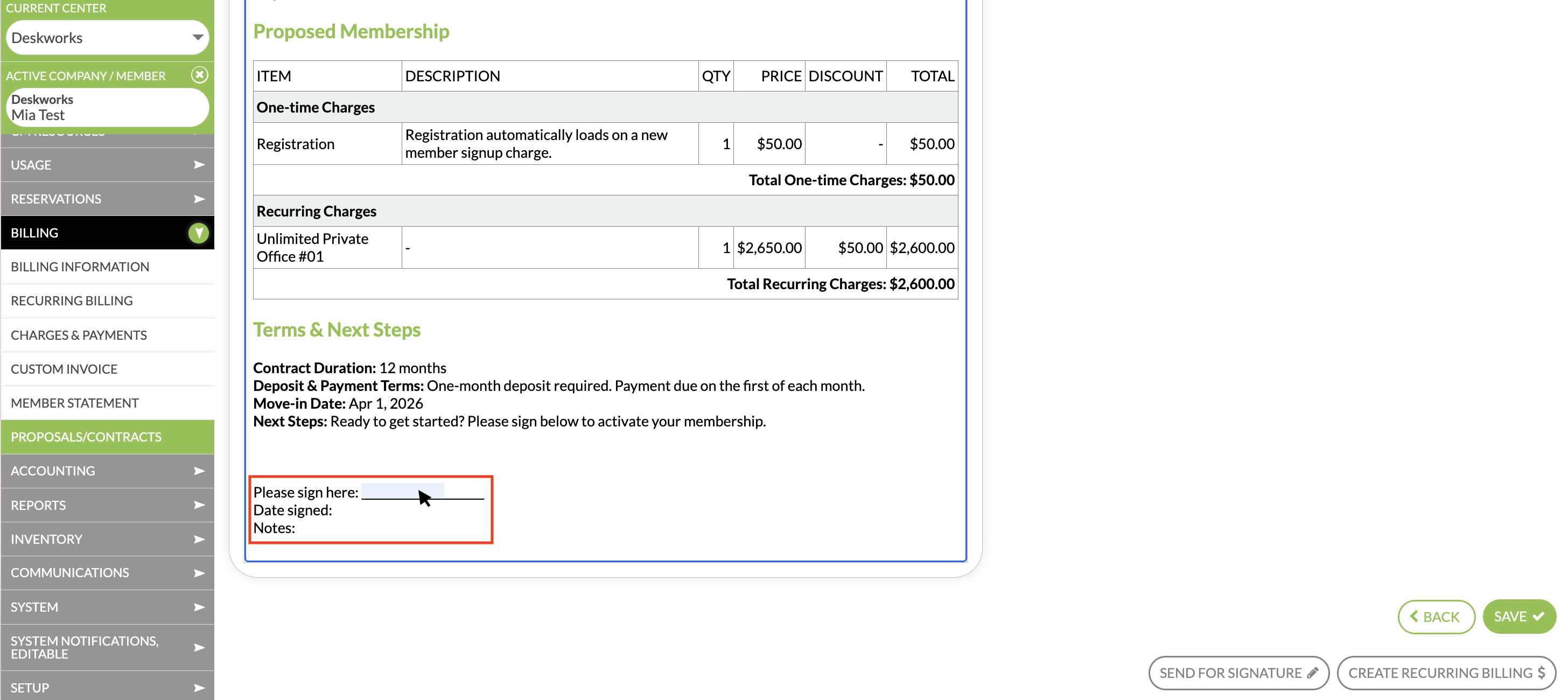
A draft of the document will appear on screen, including your Docusign fields. When you hover your cursor over the field locations, a faint blue box will appear showing where each signature, date, or note field is placed.
If you need help creating templates or proposals from a template, see:
Creating Proposals and Contracts →
Send the Agreement for Signature
- Scroll to the bottom of the PROPOSAL/CONTRACT page
- Click "Send for Signature". You will see a preview of the agreement before sending.
- You will also see an option to "Automatically activate Recurring Billing when signed". If this option is enabled, recurring billing will begin automatically once the agreement is signed.
- Click Send for Signature to email the agreement to the member or non-member.
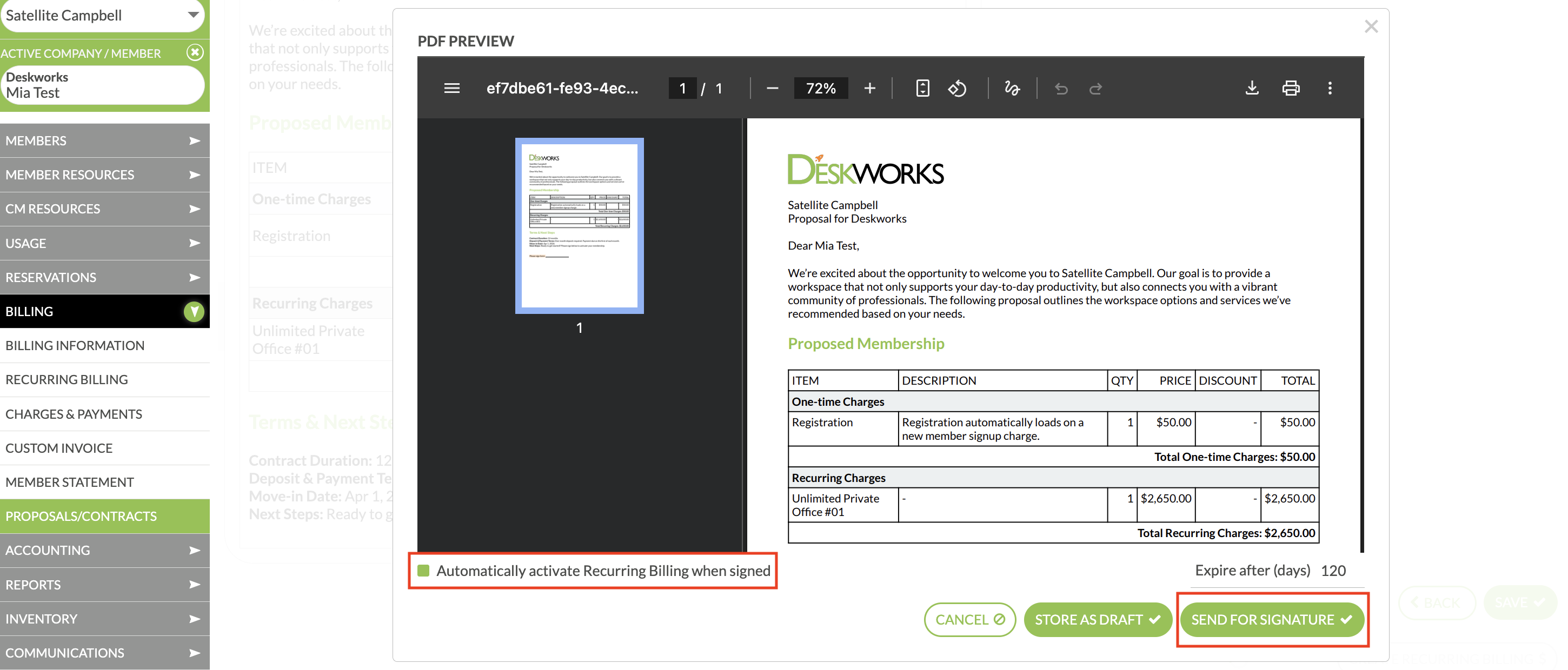
If you are not ready to send the agreement, click Store as Draft to quickly save any outstanding changes and go back to the edit screen.
If you did not enable automatic activation, you can activate recurring billing manually. Learn more here:
Create Recurring Billing from a Proposal or Contract →
Track Signature Status
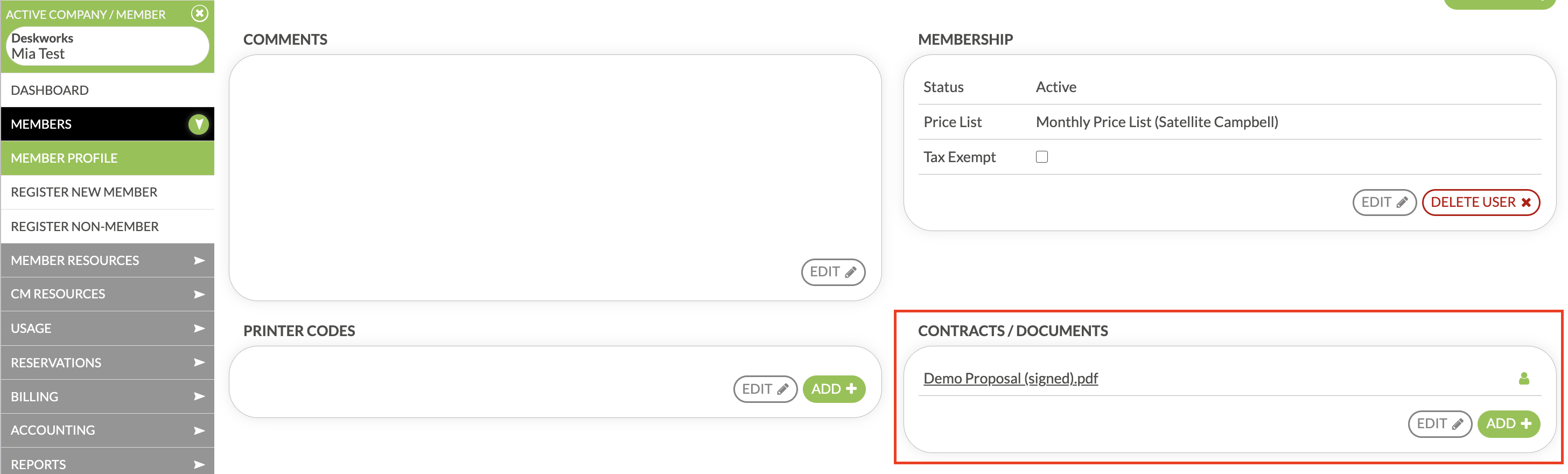
When an agreement is sent, it appears in the member’s profile under:
MEMBERS > VIEW/EDIT PROFILE > CONTRACTS/DOCUMENTS
Documents are stored here as PDF files. The status will show as:
- In Process while awaiting signature
- Signed once the member completes the document
Members can also view their agreements from their member portal, if enabled.
What the Member Receives
The member (or potential member) will receive an email from Docusign with a link to review the agreement. The email will include the name and contact information of the sender and the name of the document, so they know who it came from and what it's for.
From there, they can:
- Review the document
- Sign using a typed, drawn, or uploaded signature
- Complete required fields such as signature, date, or notes
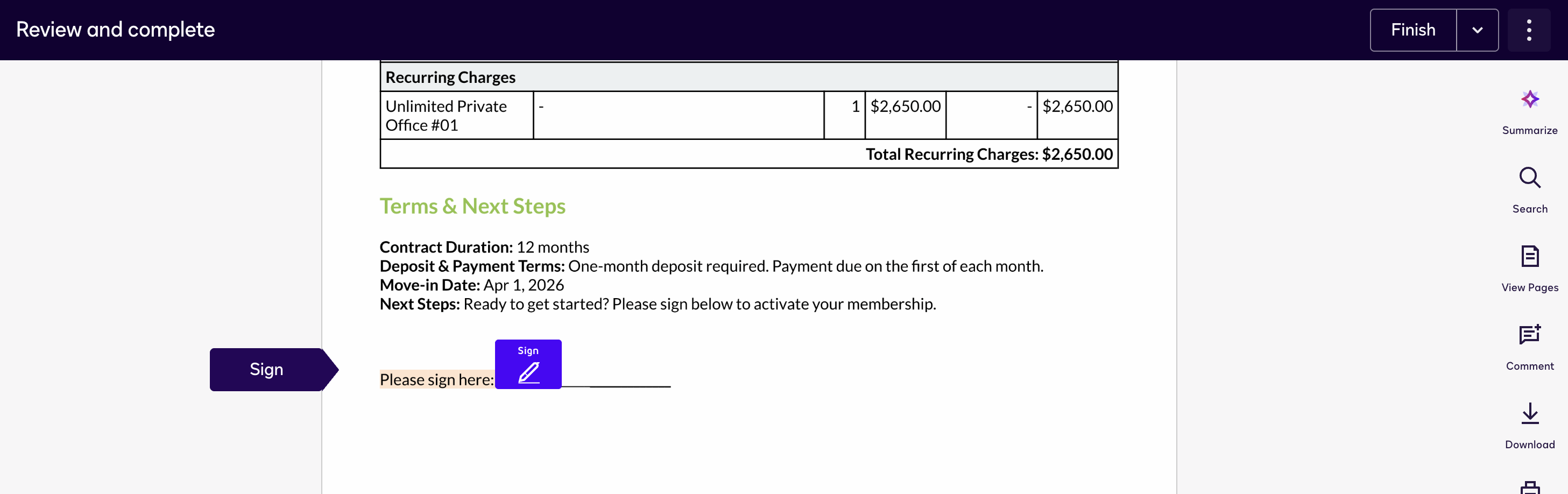
Once finished, they click Finish to complete the agreement.
Both the sender and the member will receive an email notification when the document is signed.
Was this article helpful?
That’s Great!
Thank you for your feedback
Sorry! We couldn't be helpful
Thank you for your feedback
Feedback sent
We appreciate your effort and will try to fix the article